Free audio converter to MP3, WAV, OGG or M4A
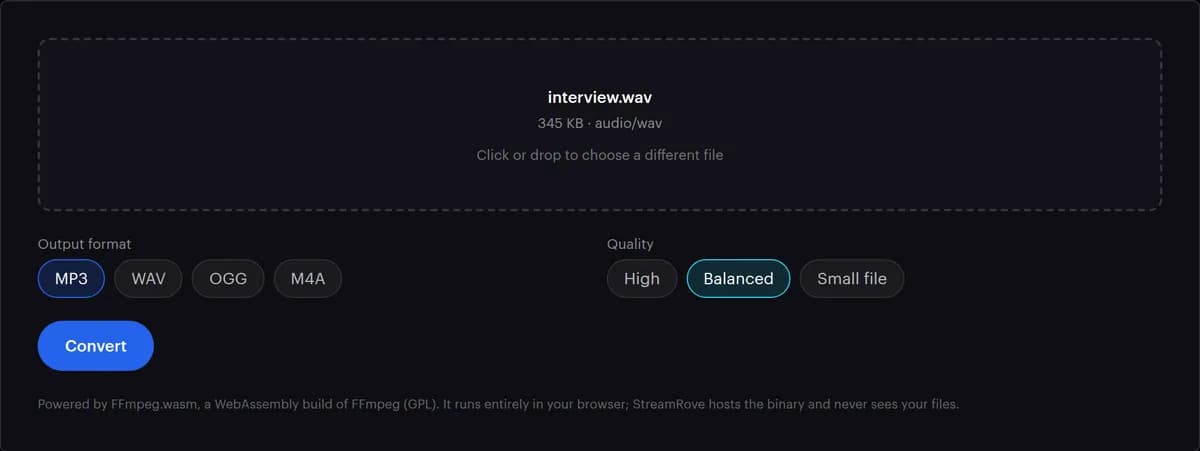
Convert an audio file, or the sound of a video, to MP3, WAV, OGG or M4A in your browser. Pick a format and one of three quality settings; the file is converted on your computer and handed back as a download. Nothing is uploaded.
Accepts MP3, WAV, FLAC, OGG, M4A, AAC, WMA, AIFF and any video file with a soundtrack.
Runs in your browser — nothing is uploaded
Preparing audio for a live show? You can also set up a Studio broadcast. Your converted file stays on this device.
Explore Studio setupHow the audio converter works
- 01
Drop in an audio or video file
Drag it onto the box or click to choose it. Anything with a soundtrack works, video included: only the sound is used, and any cover picture is left out.
- 02
Choose the output format
MP3 plays everywhere and is selected when the page opens. M4A usually sounds better at the same size and suits iPhones and Macs. OGG is for web pages and open-source players. WAV is uncompressed, for editing.
- 03
Pick a quality
Balanced is selected for you. High keeps more detail, Small file saves space, and each one is a fixed bitrate listed in the table below. WAV has no choice to make.
- 04
Press Convert
The first time, the page downloads the converter itself, about 30 MB, and your browser keeps it for next time. A progress bar shows how far your computer has got, and Cancel stops the job at any point.
- 05
Download the result
The new file keeps your file's name, with spaces turned into underscores and a new ending: .mp3, .wav, .ogg or .m4a. Its size appears next to Download before you save it.
- 06
Make another version
Pick a different format or quality and press Convert again; the engine is already loaded and the next job starts at once. Keep the original until you have played the new file to the end.
Every format and quality, with the real settings
These are the exact settings the converter uses, taken from its code. The size column tells you what one minute of sound will weigh, which helps before you email a file or fill up a phone.
| Format | What it writes | High · Balanced · Small file | One minute takes | Best for |
|---|---|---|---|---|
| MP3 | MP3 from the LAME encoder, at a constant bitrate | 320 · 192 · 128 kbps | 2.4 · 1.4 · 1.0 MB | Playing anywhere: car stereos, old players, podcast hosts |
| M4A | AAC sound in an MP4 file, arranged to start playing before it has fully loaded | 256 · 160 · 96 kbps | 1.9 · 1.2 · 0.7 MB | iPhones, Macs and Android phones |
| OGG | Ogg Vorbis, aiming at the bitrate on average | 160 · 96 · 64 kbps | 1.2 · 0.7 · 0.5 MB | Web pages, games, Firefox and open-source players |
| WAV | 16-bit PCM with no compression, at the source's own sample rate | One setting, nothing to choose | 10.6 MB at 44.1 kHz stereo, 11.5 MB at 48 kHz | Editing. Keep it as the master and make smaller copies from it |
Size per minute = bitrate × 60 seconds ÷ 8 bits per byte. For 192 kbps: 192 × 60 ÷ 8 = 1,440 kB, about 1.4 MB. WAV stores 44,100 samples a second × 2 bytes × 2 channels = 176,400 bytes a second, about 10.6 MB a minute. MP3 lands on these figures; M4A and OGG come out close to them. The converter's own size readout counts a megabyte as 1,048,576 bytes, so it shows about 5% less.
Audio conversion problems
No sound in the result
A file with no sound track at all makes the converter stop with an error saying the output 'does not contain any stream'. A file that converts but plays silent had a silent track to begin with, for example a screen recording made with the microphone off. Play the original to check.
WAV files are enormous
That is the cost of no compression: about 10.6 MB a minute at 44.1 kHz stereo and 11.5 MB at 48 kHz. Edit in WAV, then make an MP3 or M4A of the finished version for sharing.
Quality did not improve
A higher bitrate cannot bring back detail a low-bitrate file already lost. Turning a 128 kbps MP3 into a 320 kbps one makes a bigger file, not a better one.
Tags or cover art are missing
Title and artist are copied when the new format has room for them, though many players ignore tags in WAV files. Cover pictures are always left out, because the converter writes sound only. Add them back in your music player.
It fails on a very large file
Above 1.5 GB the page warns you. The file and the result both have to fit in the memory your browser gives the converter, and a very long recording can run out partway. Split it into parts, or use desktop software for that one.
A phone will not play the OGG
OGG is the least widely supported of the four formats, on Apple devices especially. For a file that has to play on any phone, convert to M4A or MP3.
Other ways to convert audio
All of these work. They differ in where your file goes, what you have to install and how much you can change.
| Way | Where your file goes | What you install | How much control | Best for |
|---|---|---|---|---|
| This converter | Nowhere: it never leaves your computer | Nothing; the 30 MB engine downloads once and is cached | Four formats, three quality settings each | Quick, private conversions of everyday files |
| A desktop audio editor | Nowhere | A program, plus its updates | Full: trim, change the volume, switch to mono, any bitrate | Fixing a recording before you export it |
| FFmpeg on the command line | Nowhere | FFmpeg, and typed commands | Every option there is, and whole folders in one go | Batches, scripts and very long files |
| Upload-based converter websites | To that site's server and back | Nothing | Depends on the site | Files that are not private, on a device too slow to convert them |
This converter runs FFmpeg too, as a WebAssembly build on a single processor core. On a long file, a program running natively on your computer finishes sooner.
Why convert audio in the browser
Private by construction
Voice memos, interviews and unreleased tracks never leave your machine. There is no server to trust, because no server ever sees the file.
No upload, no queue
Upload-based converters spend much of their time moving your file to a server and back. Here the only wait is the conversion itself.
Real encoders, settings you can see
FFmpeg with the LAME, AAC and Vorbis encoders, the same ones many desktop programs use. Every quality setting is a fixed bitrate listed on this page, not a mystery preset.
Nothing is uploaded
The file is read and converted inside your browser. We keep no copy and see no filename; the download link points at memory on your own computer.
Recording audio for a show?
StreamRove Studio runs in the browser too. Bring guests in from a link, share your screen, play a video with its sound, and send the show to every platform at once. On a paid plan, press Record and the show lands in Storage as an MP4, ready for Clips to cut into short videos.
Tips for clean, small audio files
- Convert from the best copy you have. Each pass through MP3, M4A or OGG throws a little detail away and the losses add up: keep the original or a WAV master and make every compressed copy straight from it.
- Pick by where the file is going: MP3 for a podcast host or a car stereo, M4A for an iPhone or a Mac, OGG for a web page or a game, WAV for an editing program. When in doubt, MP3 at Balanced plays everywhere.
- Check the size before you send it. At Balanced, an MP3 takes about 1.4 MB a minute, which makes a 30-minute interview about 43 MB. Small file brings the same interview down to about 29 MB.
- A recording that clipped stays distorted in every format. Before you record your own voice, run the mic test and make sure the word Clipping never appears.
Frequently asked questions
Is this audio converter free?
Yes. No sign-up, no watermark and no limit on how many files you convert. The engine is FFmpeg, an open-source program, and StreamRove hosts the copy your browser downloads.
Can I convert a video to MP3?
Yes. Drop the video in and pick MP3; only its sound is used. The audio extractor is the same engine, set up for videos.
Which format should I choose?
MP3 when you are not sure, M4A for the best sound per megabyte and for Apple devices, OGG for web pages and open-source players, WAV for editing.
Which quality setting should I pick?
Balanced suits nearly everything: MP3 at 192 kbps, M4A at 160 or OGG at 96. Choose High to archive music you care about, and Small file for speech you want to send quickly. A setting above the source's own quality only makes the file bigger.
Is anything stored on your servers?
No. The conversion is a calculation inside your browser. The only download is the converter engine itself, from StreamRove's own site; your file never travels.
Does it keep the sample rate?
WAV keeps the source's sample rate exactly. MP3 cannot go above 48 kHz, so a 96 kHz studio file comes out at 48 kHz. WAV is always written at 16 bits, the depth of a CD, which means a 24-bit recording loses its extra depth: keep the original as your master.
Can I turn stereo into mono?
Not here. The converter keeps the channels the source has, and MP3 turns anything with more than two channels into stereo. At the same quality setting a mono file is no smaller than a stereo one, because the size follows the bitrate. Only WAV halves in mono.
How large a file can it handle?
The tool sets no limit of its own, but it warns above 1.5 GB. The file and the result both have to fit in the memory your browser gives the page, and a very large file can run out partway. Split long recordings into parts.
Does it copy tags and cover art?
Title, artist and similar tags are copied when the new format can hold them. Cover pictures are not, because the converter writes sound only. Add the picture back in your music player or a tag editor.
Does it work on a phone?
It needs WebAssembly and Web Workers, which current Chrome, Edge, Firefox and Safari all have, on phones too. A phone gives a page less memory: keep phone jobs to shorter files, and remember the 30 MB engine download if you are on mobile data.