Starting soon screen and countdown timer for OBS
Make a starting soon screen with a countdown in seconds: pick the time or the number of minutes, add a label, choose colours and size, and paste one URL into OBS as a Browser Source. Transparent background, no account, nothing to install.
Works in OBS Studio, Streamlabs Desktop, vMix and any app that can show a web page as a source, and full screen on a second monitor.
Runs in your browser — nothing is uploaded
Want a countdown in your live show? Set up a Studio broadcast and add a countdown from its tools.
Prepare a Studio showHow the countdown timer works
- 01
Choose when it ends
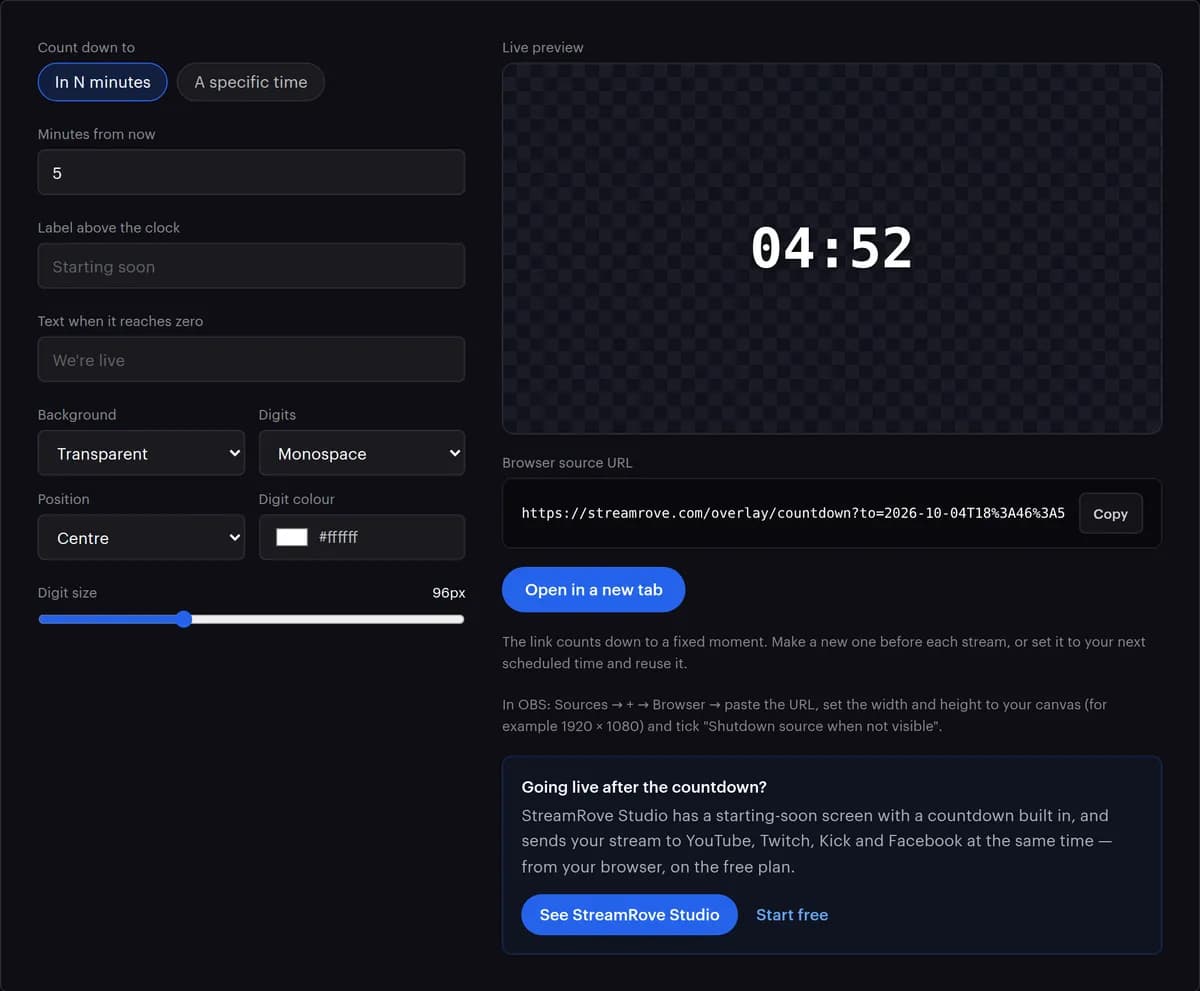
In N minutes, from 1 to 600, for the classic 'starting in 5:00', or A specific time for a scheduled show. The end moment is written into the link, and every machine that opens it shows the same clock.
- 02
Add the words
Label above the clock appears in capitals over the digits. Text when it reaches zero replaces the digits at zero; leave it empty and the clock stops at 00:00. Each takes up to 80 characters.
- 03
Pick the look
Background (Transparent, Dark panel or Light panel), Digits (Monospace or Sans-serif), Position (Centre, Top or Bottom), Digit colour, and Digit size from 24 to 240 px. The live preview follows as you go.
- 04
Copy the link
Press Copy next to Browser source URL, or Open in a new tab to see it full size. Only the settings you changed go into the link, which keeps a plain countdown short.
- 05
Paste the URL into OBS
Sources → + → Browser, paste the URL, and set Width and Height to your canvas, usually 1920 × 1080, instead of the 800 × 600 OBS starts with. The page is transparent and sits over whatever is behind it.
- 06
Go live while it runs
Start streaming a few minutes before zero, and early viewers see the clock rather than nothing. At zero the overlay only changes its text: cutting to your live scene is up to you.
Every setting in the link
The builder writes these for you, but you can also type them by hand: the address is https://streamrove.com/overlay/countdown, then a ? and any of the settings below, joined with &.
| Setting | What it does | What it accepts | If you leave it out |
|---|---|---|---|
| to | The moment the clock reaches zero | A date and time such as 2026-10-05T18:00:00Z, ending in Z for UTC (an offset like +02:00 needs its + written as %2B); or a Unix time, 10 to 12 digits for seconds, 13 or 14 for milliseconds | The digits show --:-- |
| label | A line above the digits, shown in capitals | Any text up to 80 characters; longer text is cut | No label |
| done | The text that replaces the digits at zero, at 60% of their size | Any text up to 80 characters | The clock stops at 00:00 |
| theme | What sits behind the clock | transparent, dark (a dark rounded panel) or light (a white one) | transparent |
| size | Digit height in pixels; the label is drawn at about a fifth of it, never under 14 px | 24 to 240; numbers outside are moved to the nearest end | 96 |
| color | The colour of the digits; the label keeps its own | A hex colour without the #, 3, 4, 6 or 8 characters long, such as ff3b30; anything else gives white | ffffff (white) |
| font | The typeface of the digits | mono (monospace) or sans (sans-serif) | mono |
| align | Where the clock sits on the canvas | center, top or bottom, 32 px from the edge | center |
Example: https://streamrove.com/overlay/countdown?to=2026-10-05T18:00:00Z&label=Starting+soon&done=We're+live&size=120&color=ffcc00. Under an hour the clock reads like 04:59, from one hour like 01:04:09, beyond a day like 2d 01:04:09. It redraws four times a second from the clock of the computer showing it, and carries no watermark.
Countdown not showing right? Check these
The clock is already at zero
The link points at a fixed moment. With In N minutes, the minutes start when you set the number, not when OBS opens the link. Make a new link just before you need it, or use A specific time.
A box behind the digits
A dark or white box is the Dark panel or Light panel background; choose Transparent. If the whole source turns black, check the Browser source's Custom CSS for a background rule and update OBS: the page itself is transparent.
Text is cut off
The Browser source is smaller than the clock. Match its width and height to your canvas, or lower the digit size in the builder.
It is a few seconds off
The countdown follows the clock of the computer showing it. If that computer's time is wrong, the countdown is too: switch on automatic time in the system settings.
Changes in the builder do not show in OBS
Every setting lives in the link, and a change makes a new link. Copy it again and paste it into the Browser source's URL field; Refresh alone reloads the old one.
Special characters look wrong
Copy the URL from the box rather than retyping it: the label is encoded for the address bar, and a hand-typed link loses that. A + typed by hand turns into a space.
Other ways to put a countdown on stream
A countdown can live in a web page, in OBS itself, in a video file or inside StreamRove Studio. The big difference is whether the clock aims at a real time of day.
| Way | Counts to a set time | How it looks | Setup | Good for |
|---|---|---|---|---|
| This countdown link | Yes, or a number of minutes from when you make it; every copy shows the same clock | Label, end text, colour, size, position; transparent or on a panel | Paste one URL as a browser source | Starting-soon screens and scheduled shows |
| OBS's countdown script | No: it counts a set number of minutes from when its text source becomes active | Whatever the text source is styled as | Tools → Scripts, add countdown.lua, pick a text source | A simple timer that lives entirely inside OBS |
| A countdown video | No: it plays from the start each time | Anything you can design in a video editor, music included | Add it as a media source and start it on time | A polished, fixed-length intro |
| StreamRove Studio's Intro and Interval cards | No: they count their own length | A headline, a line under it, one of four built-in backgrounds | Inside Studio; no browser source involved | Openings and breaks in a show made in the browser |
In Studio, an Intro card can play the moment you press Go live, and an Interval card is a full-screen break of 30 seconds to 10 minutes that returns to your scene when its time is up. Both can show a countdown.
Why a countdown before you go live
Early viewers stay
A screen that says "starting in 3:12" holds people who would leave a static image. It is the cheapest retention you will ever add.
It buys you a calm start
Five minutes of countdown is five minutes to check audio, load the game and read chat while the stream is technically live and the platforms are already notifying followers.
One link, any machine
A browser source works the same in OBS on Windows, Mac and Linux, in Streamlabs Desktop and in vMix. Send the link to a co-host and you both see the same clock.
Nothing is stored
There is no account and no saved countdown. Every setting lives in the link you copy, and the overlay page draws the clock from it on the computer that shows it.
Schedule the whole show, not just the clock.
Upload & stream plays a pre-recorded show to every platform at the time you set: schedule it for the minute your countdown ends. If your encoder drops mid-stream, the Backup stream card, on the Control plan and up, puts a holding screen on every platform, a countdown among the choices, until you are back.
Tips for a better starting-soon screen
- Put the countdown over a scene with your schedule, socials and music, not over a black frame.
- Set the end text to what happens next, such as 'Going live' or 'Grab a seat'. It stays on screen at zero until you switch scenes.
- 96 px, the default, reads well on a 1920 × 1080 canvas. Go bigger rather than smaller if many of your viewers watch on phones.
- For a scheduled show, use A specific time and send the same link to co-hosts. The time is stored in UTC, and everyone sees the same clock in any time zone.
Frequently asked questions
Is the countdown timer free?
Yes. No sign-up, no watermark, no limit on how many links you make.
Does it work with OBS Studio?
Yes, that is what it is built for: add a Browser source, paste the URL and set its size to your canvas. It works the same way in Streamlabs Desktop's Browser Source and in vMix's Web Browser input.
Can I use it in StreamRove Studio?
Not as a browser source: Studio does not load web pages into a scene. Use its own cards instead. The Intro card can play the moment you press Go live, and an Interval card is a full-screen break that returns to your scene when its time is up; both can show a countdown.
Why does the link stop working the next day?
It does not stop; it has reached zero, because it counts down to a fixed moment. Make a new link for each stream, or point it at your next scheduled time.
Can I change the font or colours?
Yes: digit colour, digit size from 24 to 240 px, monospace or sans-serif digits, centre, top or bottom position, and a transparent, dark or light background. All of it travels in the URL. The label above keeps its own colour.
Can I show it on a second monitor instead?
Yes. Press Open in a new tab and make the window full screen (F11 on Windows, Control-Command-F on a Mac). Choose Dark panel or Light panel so the digits sit on a solid background.
What time zone does it use?
The one on the computer where you make the link. A specific time is saved in the link as UTC, and a co-host in another country sees the same moment counted down. If you type the to= value by hand, end it with Z.
Does the countdown start my stream automatically?
No. At zero the digits give way to your end text, or 00:00, and stay there; going live and switching scenes stay with you. For a pre-recorded show, Upload & stream can start the broadcast by itself at the time you schedule.
Will viewers see the countdown before I go live?
Only once your stream is on: the countdown is part of your scene. Start streaming with the countdown scene showing, a few minutes early. StreamRove's own share page shows no countdown before a broadcast starts; it simply says the stream has not started yet.
How long can a countdown run?
In N minutes goes up to 600 minutes, ten hours. A specific time has no upper limit: beyond a day the clock reads like 2d 01:04:09.