Webcam test in your browser
Check that your camera works before the call or the stream: see the live picture, the real resolution and frame rate your browser is getting, and switch between cameras. Nothing is uploaded — the video never leaves this tab.
Works with built-in laptop cameras, USB webcams, capture cards and phone-as-webcam apps.
Runs in your browser — nothing is uploaded
Happy with your camera? Set up a browser broadcast in Studio, then choose where to stream.
Set up a Studio broadcastHow the webcam test works
- 01
Press Start test
Your browser asks for permission to use the camera. Allow it: the permission applies to this page only, and you can withdraw it at any time from the address bar.
- 02
Look at the preview
If you see yourself, the camera works. The test asks for 1920 × 1080 at 60 fps, and the browser opens the closest mode your camera offers.
- 03
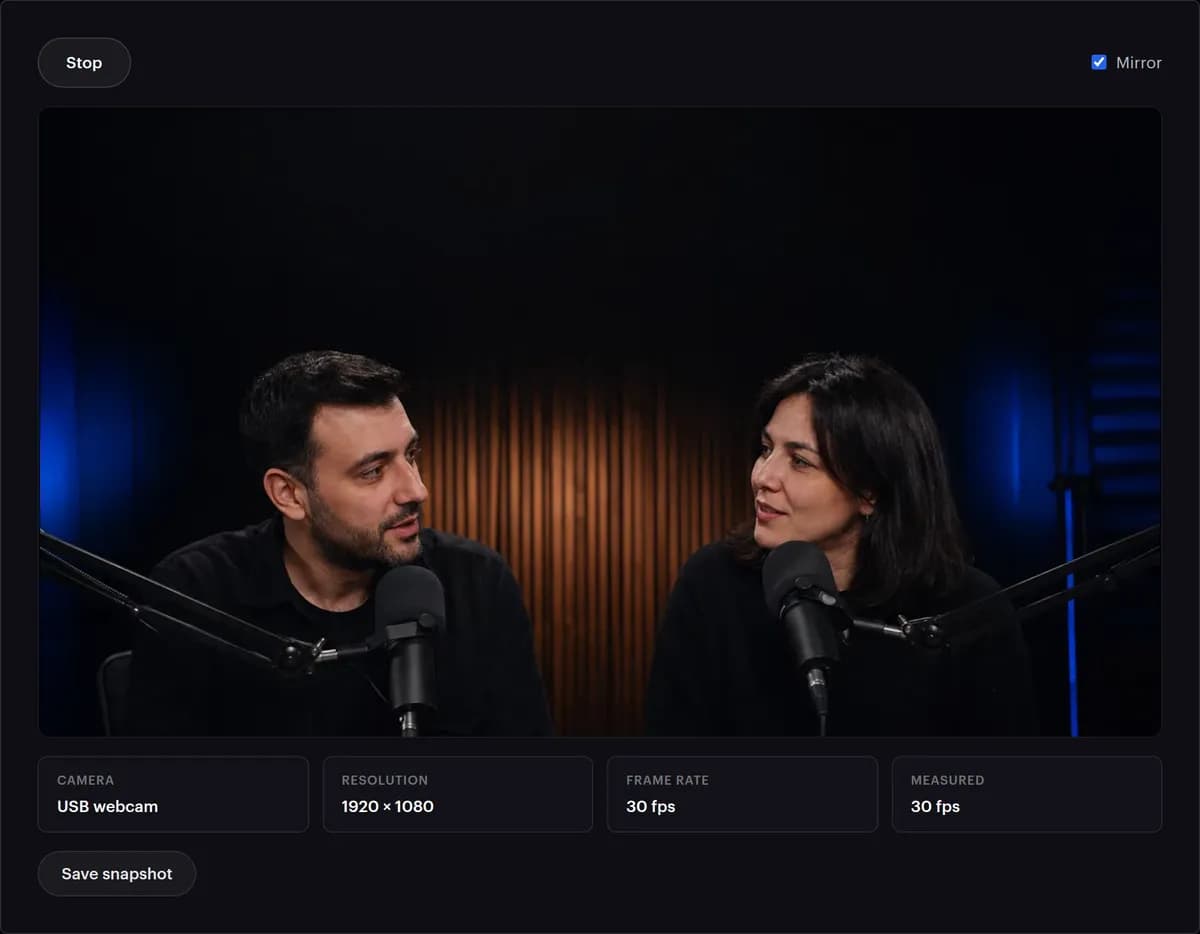
Read the four numbers
Camera is the device's name. Resolution and Frame rate are the mode the camera was opened in. Measured counts the frames that actually reach the screen each second; the table below explains what a low figure means.
- 04
Switch cameras
With more than one camera, a list appears next to Stop. Choosing another one restarts the test with it, without reloading the page.
- 05
Check the mirror
Mirror is ticked when the page opens, because a mirrored preview feels natural. Your viewers see the picture the other way round: untick it to check how text on a shirt or a sign reads.
- 06
Save a snapshot
Save snapshot downloads webcam-test.png at the camera's full resolution. It follows the Mirror setting: untick Mirror first if you want the picture viewers get. Zoom in on it to judge focus and grain.
What each reading means
The four numbers under the preview come straight from your browser. Here is how to read them, and what usually explains a disappointing one.
| Reading | What it is | What you want | If it looks wrong |
|---|---|---|---|
| Camera | The name your system gives the device | The camera you meant to use | Pick another from the list. Virtual cameras, such as OBS's, and capture cards appear there too |
| Resolution | The picture size the camera was opened at; the test asks for 1920 × 1080 | 1920 × 1080 from a 1080p webcam | A smaller size: the camera's own limit, a USB hub or long extension cable, or a setting in the camera's software. Plug straight into the computer and press Start test again |
| Frame rate | The rate the camera was opened at; the test asks for 60 | 30 or 60 fps | Many webcams reach 60 fps only at smaller sizes, and the browser picks the best mix of size and rate it can get |
| Measured | Frames that actually reach the screen each second, counted by your browser | About the same as Frame rate | Lower: usually dim light, which makes many webcams expose each frame longer, or a busy USB hub or computer. A dash means your browser cannot count frames |
| Mirror | Flips the preview left to right; ticked to start with | Unticked when you check what viewers see | Backwards text is the mirror, not the camera |
| Save snapshot | A PNG at the camera's full resolution, mirrored if Mirror is ticked | Sharp eyes and edges when you zoom in | Soft: clean the lens, give autofocus more light to work with, or move back a little |
Once you stream from OBS or another encoder through StreamRove, the health panel keeps watching on the stream itself: it warns when the frame rate falls below 24 fps or the picture freezes.
Webcam not working? Check these first
Permission was blocked
Click the camera icon in the address bar and set it to Allow, then reload. On macOS also check System Settings → Privacy & Security → Camera for your browser; on Windows, Settings → Privacy → Camera.
Another app is holding the camera
Most webcams serve one app at a time. Close Zoom, Teams, OBS or the camera's own utility and press Start again.
The wrong camera is selected
Computers with a capture card or a virtual camera (OBS Virtual Camera, phone-as-webcam apps) often open the wrong device first. Choose the right one from the list; it appears once permission is granted.
Black picture, no error
A physical privacy shutter, or a camera disabled in Device Manager / System Settings, looks exactly like this. Check the lens cover first.
Low resolution or frame rate
USB hubs and long cables can hold a webcam to a smaller size, and in a dim room many webcams deliver fewer frames. Plug straight into the computer and put a light in front of you.
Works here, not in your app
The browser is the simplest camera client there is. If the picture shows here, the problem is the other app's device selection or a permission it has not been given.
The picture is dark or grainy
Webcams brighten a dark room by amplifying the picture, which shows up as grain, and many slow down to fewer frames at the same time. A lamp or a window in front of you fixes both. Save snapshot and zoom in to see the difference.
No camera was found
Plug the camera in before you press Start test, try another USB port, and check that it is switched on in Device Manager on Windows or listed under Camera in System Information on a Mac.
Other ways to check a webcam
Each answers a slightly different question. This test answers the first one: does the camera work, and what is it really sending?
| Way | Shows the real size and frame rate | Counts frames delivered | Needs an install | Good for |
|---|---|---|---|---|
| This webcam test | Yes, under the preview | Yes, in browsers that can count them | No | A quick check before a call or a stream |
| Your computer's camera app | Rarely on screen | No | Comes with the system | Taking a photo or a short clip |
| A meeting app's video settings | Usually not | No | The app itself | Seeing how that app frames and lights you |
| OBS's Video Capture Device source | Yes: you choose them in its properties | Not for the camera on its own | OBS | Setting the camera up for the stream itself |
| The camera maker's software | Depends on the maker | Depends on the maker | Usually | Locking focus, exposure and white balance |
Whichever you use, test with the lighting and the USB port you will have on the day. Both change what the camera delivers, and a test done in a bright office says little about a dim bedroom at night.
Why test your webcam before going live
Fix problems while nobody is watching
A camera that will not start is a two-minute fix before the stream and an awkward five minutes during it.
See what your viewers will see
Framing, lighting and focus are easy to judge on a large preview and impossible to judge from a thumbnail in a meeting grid.
Know your real resolution
A webcam sold as 1080p can deliver 720p over a slow connection. Knowing the number tells you what your encoder actually has to work with.
Nothing leaves your browser
The video stays in this tab. It is not recorded, uploaded or analysed on our servers — the page runs entirely on your device, and closing it ends the camera session.
Camera works? Go live from the same browser.
StreamRove Studio turns this preview into a broadcast: invite guests, add lower thirds and a banner, and send one stream to YouTube, Twitch, Kick and every other destination at once.
Tips for a better webcam picture
- Put the main light in front of you, not behind. A window behind you turns you into a silhouette, and a dim room makes many webcams drop frames.
- Raise the camera to eye level: a laptop on the desk films your ceiling and your chin.
- If the picture brightens and darkens as you move, lock exposure and white balance in the camera's own software.
- Plug the camera straight into the computer, on a USB 3 port if it has one, rather than a hub or a long extension. Your sound deserves the same check: the mic test takes a minute.
Frequently asked questions
Is this webcam test free?
Yes. There is no sign-up, no download and no limit on how often you use it.
Why does the browser ask for permission?
Browsers never let a website see a camera without an explicit click. The prompt is that click, and the permission can be withdrawn from the address bar at any time.
Can I test more than one camera?
Yes. Every camera the browser can see appears in the list once you have granted permission. Switch between them without reloading.
Does it work on phones and tablets?
Yes, in any modern mobile browser. Front and back cameras both appear in the list.
Why is the picture mirrored?
A mirrored preview feels natural because that is how a mirror works, but your viewers see the picture the other way round. Untick Mirror to see exactly what they see. Snapshots follow the same setting.
Why does my 1080p webcam show 1280 × 720?
The test asks for 1920 × 1080, and the browser settles on the closest mode the camera offers over its connection. A USB hub, a long extension cable or the camera's own software can hold it lower. Plug it straight into the computer, close other camera apps and press Start test again.
Why is Measured lower than Frame rate?
Frame rate is the mode the camera was opened in; Measured counts the frames that actually arrive. In dim light many webcams expose each frame longer and deliver fewer of them: add light in front of you first. A busy USB hub or a computer under heavy load can hold it back too.
Will my viewers see 60 fps?
Only if your streaming app sends 60. StreamRove Studio broadcasts at 30 fps in 1920 × 1080, and a 30 fps webcam is all it needs. In OBS, the frame rate under Settings → Video decides, and LinkedIn takes 30 fps at most; the bitrate calculator gives the bitrate to match.
Is my webcam good enough for streaming?
If the test shows 1280 × 720 or more at a steady 30 fps in your usual lighting, it is enough for a talking-head stream. Light makes more difference than the camera: a lamp in front of you does more than an expensive upgrade.
Does StreamRove Studio check the camera too?
Yes. Before anyone enters a Studio broadcast, the join screen shows a local preview with the camera, microphone and effects to choose from, and nothing is on air until the host presses Go live.