Mic test in your browser
Check that your microphone is picked up, how loud it is and whether it clips, then record five seconds and play it back to hear how you come across. Nothing is uploaded.
Works with headset mics, USB microphones, audio interfaces and the built-in laptop mic.
Runs in your browser — nothing is uploaded
Microphone checked? Continue in Studio to prepare your camera and microphone for a broadcast.
Prepare my Studio broadcastHow the mic test works
- 01
Press Start test
Your browser asks for permission to use the microphone. Allow it, then talk the way you will on stream: same distance, same volume.
- 02
Pick the right microphone
With more than one input, a list appears next to Stop. Webcams, headsets and capture cards all count as microphones: check the name in the readout.
- 03
Read the bar and the white line
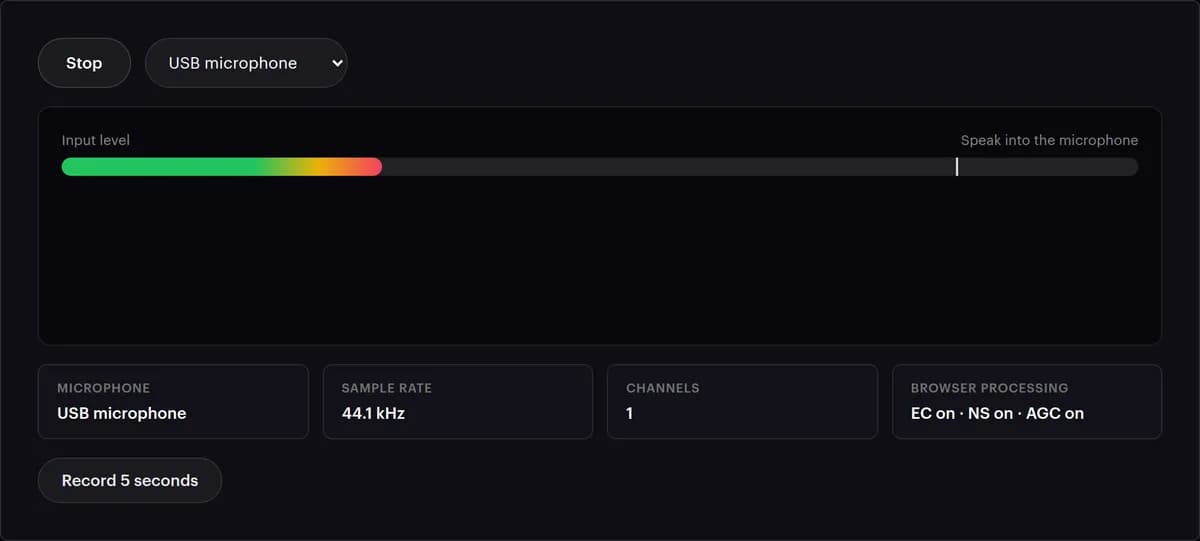
The bar shows how loud you are right now, from −60 dB at the left edge to 0 dB at the right. The white line holds your loudest recent moment. Go by their position and the words above them rather than by the colours.
- 04
Watch for the two warnings
'Very quiet — move closer or raise the gain' and 'Clipping — lower the gain' replace 'Speak into the microphone' when something needs fixing. The wave underneath turns pink while you clip.
- 05
Check the readout
Under the meter: the microphone's name, the sample rate, the number of channels, and whether the browser's echo cancellation (EC), noise suppression (NS) and auto gain (AGC) are on.
- 06
Record and play back
Press Record 5 seconds, talk, then press play next to 'Play it back'. Listen on headphones: they reveal echo, hum and keyboard noise that a meter cannot show.
What the meter is telling you
Two marks move as you speak. The bar is your loudness right now, on a scale from −60 dB at the left edge to 0 dB, the loudest a digital signal can carry, at the right. The white line holds your loudest recent peak. Here is what each reading means and what to change.
| What you see | What it means | What to do |
|---|---|---|
| The bar stays in the left fifth while you are silent | Room noise under about −48 dB: a quiet room | Nothing. This is what you want between sentences |
| The bar sits past a quarter while you are silent | Room noise above about −45 dB: a fan, a computer, traffic | Find the noise, move the microphone closer to your mouth and lower the gain a little |
| On your loudest words, the white line reaches about half-way | Peaks around −6 dB: loud, with room to spare | Leave it there |
| 'Very quiet — move closer or raise the gain' while you talk | Even your peaks stay under about −34 dB, 2% of the scale | Move closer first, then raise the gain on the interface or in your system's sound settings |
| 'Very quiet' only when you stop talking | The white line falls back within a second or two of silence | Normal. Ignore it between sentences |
| 'Clipping — lower the gain', or a pink wave | Your sound reached 98% of the maximum and its loudest parts are being cut off | Lower the gain at the source until a laugh or a shout no longer sets it off. Clipping cannot be fixed afterwards |
| EC · NS · AGC on | The browser is cleaning up and levelling your sound for this page | Expect a slightly different level and more room noise in OBS, which hears the microphone without these unless you add filters |
| Sample rate 44.1 or 48 kHz | The rate your browser's audio runs at on this computer, set by your default speakers or headphones | Nothing to fix. Set 48 kHz for the stream itself in your encoder |
| Channels 1 or 2 | Mono or stereo, as the browser receives it | A voice needs only one; either is fine |
How the two scales are drawn: each tenth of the bar is 6 dB, so half-way is −30 dB. The white line uses a straight scale instead, where half-way is −6 dB and a quarter is −12 dB. That is why the line and the end of the bar rarely sit in the same place.
Mic not working? Check these first
Permission was blocked
Click the microphone icon in the address bar and set it to Allow, then reload. On macOS also check System Settings → Privacy & Security → Microphone; on Windows, Settings → Privacy → Microphone.
The wrong input is selected
A webcam, a capture card and a headset all register as microphones. Pick the right one from the list; the built-in mic is rarely the one you want.
Muted at the source
Headsets have an inline mute, interfaces have a gain knob at zero, and Windows can mute a device in Sound settings. The meter reads silence for all three.
Very quiet
Dynamic microphones need a lot of gain. Raise the input level in your system's sound settings or on the interface before touching software gain.
Clipping
If the word Clipping appears, or the wave turns pink, while you speak normally, turn the gain down at the interface or in your system's sound settings. Clipping cannot be fixed afterwards.
Works here, not in OBS
OBS has its own device list and its own mute buttons. If the browser hears you, the fix is in OBS's Audio Mixer, not your hardware.
It says the device is busy
Another app has taken the microphone for itself. Close Zoom, Teams, OBS or the interface's own software, then press Try again.
The playback sounds hollow or doubled
The room is bouncing your voice back, or your speakers were playing while you recorded. Wear headphones, and put soft things around you: curtains, a rug, a sofa.
Other ways to check a microphone
Each one answers a different question. This test is the quickest way to rule out the hardware before you open anything else.
| Way | Shows the level | Lets you hear yourself | Warns about clipping | Good for |
|---|---|---|---|---|
| This mic test | Yes: a bar from −60 to 0 dB and a peak line | Yes: record five seconds and play them back | Yes: the word Clipping and a pink wave | A quick check in any browser, nothing installed |
| Your computer's sound settings | A simple level bar | Not on every system | Usually not | Choosing the default microphone and its input level |
| OBS's Audio Mixer | Yes, for each source, in dB | Only by monitoring or recording | By colour, near the top of the meter | Setting the level for the stream itself, with OBS's filters in place |
| A voice memo or recorder app | Rarely | Yes, as long as you like | Only by ear | Hearing a longer take on the device itself |
Why test your microphone before going live
Bad audio loses viewers faster than bad video
People will watch a soft picture for an hour; they will leave a distorted or too-quiet voice in seconds.
Levels drift
A system update, a new headset or a knob knocked by a cable changes the input level without telling you. Thirty seconds of checking catches it.
Hear yourself as others do
Five seconds of playback on headphones reveal echo, hum and distance that no meter can show. A sound problem caught here costs nothing to fix.
Nothing leaves your browser
Audio is analysed and recorded in this tab only. The five-second clip is held in memory for playback and disappears when you leave the page — nothing is sent to our servers.
Sounds good? Take it live.
StreamRove Studio broadcasts from the browser with the same microphone. Bring guests in from a link, put up to four people on screen, and send one stream to every platform at once. Noise suppression, voice isolation and a noise gate are each one switch away.
Tips for better stream audio
- Keep the microphone about a hand's width from your mouth and a little to the side, so 'p' and 'b' sounds do not pop.
- Set your level on your loudest moment, a laugh or a shout, not your normal voice. If Clipping stays away then, it stays away for the whole stream.
- Noise suppression is for noisy rooms. With a good microphone in a quiet room, try Studio with it switched off and compare: suppression can thin out a clean voice.
- Soft furnishings behind and beside you do more against echo than any plugin. Check the camera while you are at it with the webcam test.
Frequently asked questions
Is this mic test free?
Yes. No sign-up, no download, and you can use it as often as you like.
Is my voice recorded or stored?
Only if you press Record, and then only in your browser's memory so you can play it back. Nothing is uploaded, and leaving the page discards it.
What do EC, NS and AGC mean?
Echo cancellation, noise suppression and automatic gain control: clean-up the browser can apply to the microphone. The test uses your browser's defaults, which usually means all three on, and the readout shows their state for the device you picked.
Why is the level meter moving while I am silent?
That is the room: fans, traffic, a fridge, the computer itself. If the bar sits past the first quarter in silence, track down the noise, or move the microphone closer and lower the gain.
Can I test an audio interface or a mixer?
Yes. Any input your operating system sees appears in the list. If it is missing, check the interface's driver and that it is set as an input device.
What level should I aim for?
Talk at your streaming volume and watch the white line: on your loudest words it should reach about half-way, which is −6 dB, and the word Clipping should never appear. If the label says Very quiet while you are talking, move closer before you raise the gain. With AGC on in the readout, the browser is already levelling you: confirm the final level in OBS's Audio Mixer.
Why does my voice sound different in OBS or Discord?
This test hears the microphone through the browser's own echo cancellation, noise suppression and auto gain. OBS takes it without them unless you add filters, and Discord applies its own processing. Use this test to rule out the hardware, then set the level in the app you will stream from.
Why does the sample rate say 44.1 kHz when my microphone records at 48 kHz?
The readout shows the rate your browser's audio runs at on this computer, which follows your default speakers or headphones, not the microphone's own setting. It does not affect the test. In your encoder, set 48 kHz for the stream.
Does the test work with Bluetooth headsets?
Yes, and it is a good place to hear the catch: while a Bluetooth headset's microphone is in use, most headsets switch to a call mode that sounds duller, in your ears too. Record five seconds and you will hear it. A wired or USB microphone sounds better on stream.
Does StreamRove Studio use the same microphone settings?
Studio runs in the browser too and lists the same microphones, with its own switches for Noise suppression, Voice isolation (system) and a Noise gate; none of them is AI. Guests check their camera and microphone on the join screen before they come in.