Run your game stream from one desk in a browser tab
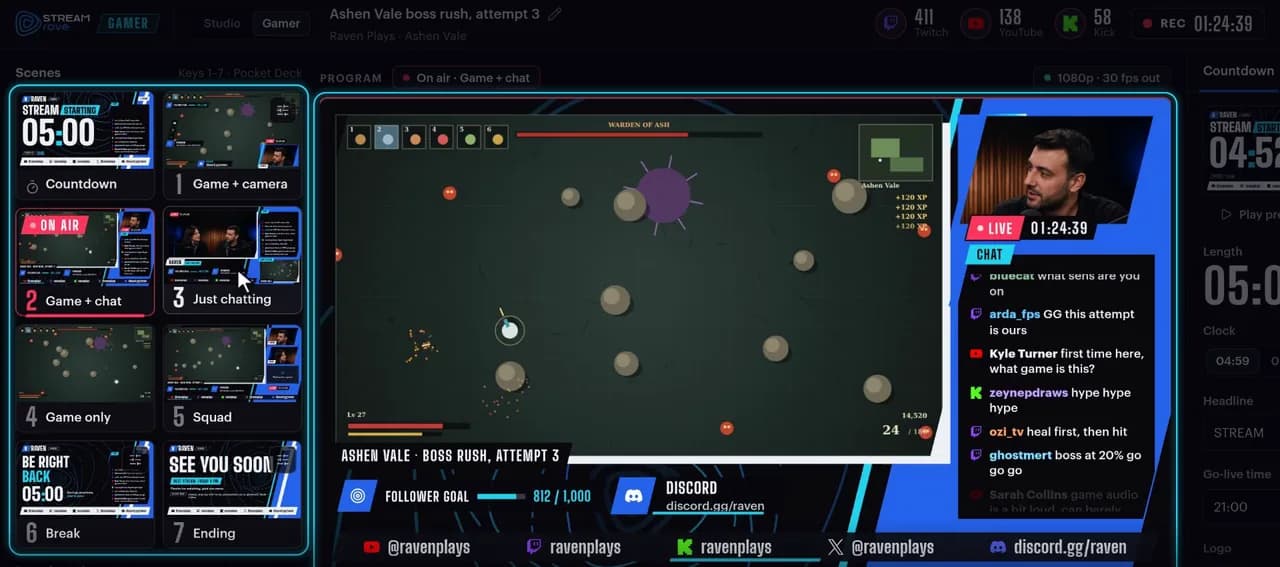
Gamer Studio is the Studio's desk for people who play while they broadcast. Pick it when you create a stream, share the window your game runs in, and everything you need during the show sits on one page: scenes, a countdown, chat, alerts. We put the picture together on our servers and send it to every platform you've added.
You need a computer, and Chrome or Edge gets you every feature. OBS isn't required, but it can feed the desk when a game refuses to be captured by a browser.
Gamer Studio in 30 seconds
Scenes, transitions, on-air graphics and a countdown before you go live: the Studio's desk built for game streams.
What it takes off your plate
A start your audience can plan around
Set a length, press Go live, and the broadcast opens on a Starting soon screen with a clock. At zero every viewer is cut to your first scene, even if the desk is in a background tab. The clock only begins once our servers are really sending the show, so it can't run down while the stream is still coming up.
Your hands stay on the game
Scan a code and your phone becomes a remote with buttons for scenes, the countdown, your microphone and replays. In Chrome or Edge, a small window can also float above the game with the main controls.
Chat and alerts without a pile of widgets
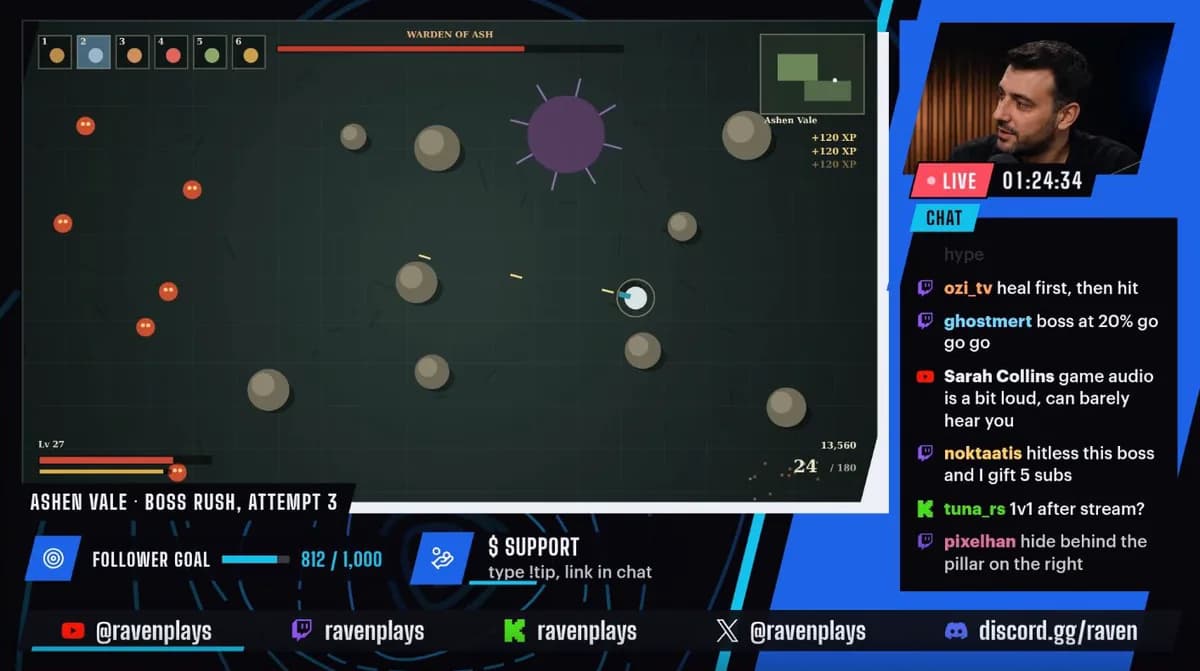
Chat from Twitch, YouTube and Kick can sit beside the game (Relay and above), and you can put a single message on screen when it deserves it. Alerts for follows, subs, gifts, raids, bits, Super Chats and memberships work on every plan, depending on what each platform reports.
A friend in the frame, or their game
Squad seats you and up to three guests beside the game, as many as your plan lets in. Versus puts your game next to one guest's, each with its player's camera. Guests join from a link, with no account.
What's on the desk
Seven scenes and two cards
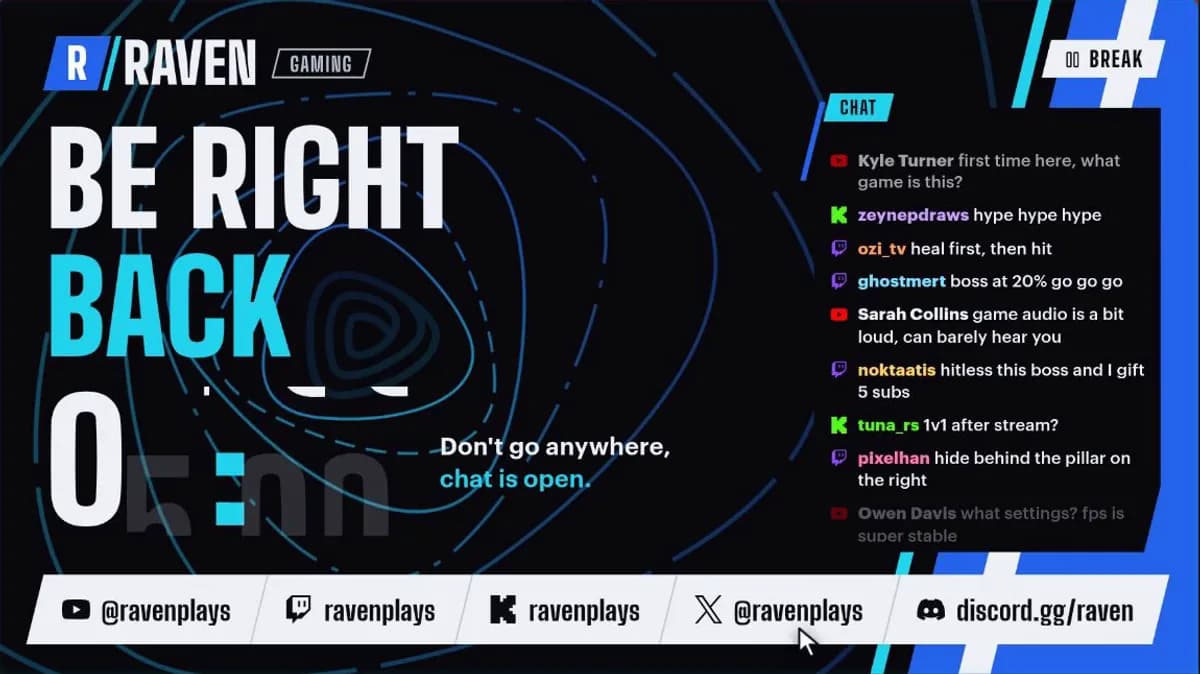
Game + camera, Game + chat, Just chatting, Game only, Squad, Break and Versus are ready from the first minute, with a Starting soon card ahead of them and an Ending card behind. Each scene has a few settings of its own: the camera corner and size on Game + camera, the number of seats on Squad, the words and length on Break.
Scene changes
Cut, Fade, Slide, Zoom, Shutter, Glitch or Morph: pick one before you switch. Prefer calm? Motion on air turns the busy ones into quick fades.
A countdown you can bend
Choose a length from one minute to an hour, write the headline and the line beside the clock, and say which scene comes next. Need longer? Press +1 min before zero. Ready early? Start now.
A goal, a counter and your links
A follower goal and a counter (Deaths, if that's your game) that you move by hand, up to four info cards that take turns every five seconds, a band with your social handles and a plate with the game's name. StreamRove doesn't read your follower count, so the goal moves when you move it.
Alerts that stay out of the way
An alert comes in for 0.3 seconds, stays five and leaves in 0.2, and the next one waits behind it. Every scene reserves a slot for them, away from your camera and the chat, and a burst of gifted subs counts as one alert.
Polls, replays and sound effects
Viewers vote in a chat poll by typing !1 to !4, with all three platforms counted together, and a hype meter fills with the chat's pace. A replay button plays the game's last eight seconds at half speed (Chrome or Edge), and six short sound effects, a horn and a victory sound among them, play on the broadcast.
Gamer Studio, or OBS with overlays and alert widgets?
Plenty of game streamers build their show in OBS: a scene collection, a timer source, widgets from an alert service. It works well and lets you control every pixel. This is what changes when the desk comes ready-made.
| StreamRove | OBS with overlays and alert widgets | |
|---|---|---|
| Before the first stream | ✓ Choose Gamer Studio and share the game window | Build the scenes, add the sources, wire up each widget |
| A countdown that starts with the broadcast | ✓ Built in; it waits until the show is on its way out | A timer source and a scene you switch yourself |
| Running it while you play | ✓ A phone remote and a mini desk over the game | ✓ Hotkeys and docks; a Stream Deck or a script for more |
| Chat and alerts on screen | ✓ Built in (chat on screen needs Relay or above) | ✓ Browser-source widgets from third-party services |
| Work for your computer | Your browser sends the game, your camera and your microphone; our servers compose and encode the show | It composes and encodes the whole show |
| Sending to several platforms | ✓ Every destination on the stream | One output per platform, or a multi-output plugin |
| Exclusive full-screen games, capture cards, plugins | — A shared window can come out black; OBS can feed the game in | ✓ Anything OBS can capture |
| Layout freedom | — Seven scenes you adjust, not draw | ✓ Any layout you can build |
| The picture | 1080p at 30 fps, or 720p at 60 fps on a paid plan | ✓ Whatever your computer and platform allow |
How to run your first game stream
For a first run, switch every destination off. Go live then starts a broadcast that no platform receives, though it still counts toward your plan's limits.
Create a Gamer Studio stream
Click New Stream and choose Gamer Studio. There's no server address or stream key to copy, because the desk sends the show itself.
Add your destinations
Open the Destinations tab and add the platforms for this stream. Twitch, YouTube and Kick connect in one click; the rest take the server URL and key their platform gives you.
Share your game
Press Share game and pick the game's window. Set the game to borderless or windowed first, because an exclusive full-screen game often comes out black.
Set up the countdown
On the Countdown tab, set how long it runs and what it says, then choose the scene it cuts to. Switch it off to start straight on the game.
Look through the scenes
Click the gear on a scene to set its camera corner, seats or wording. The first scene waits for your game, so share it before you go live.
Connect your phone
Optional: on the Remote tab, press Connect phone and scan the code before it hides.
Go live
Press Go live. The countdown runs if it's on, then the first scene appears. To end the show, hold the button down so a stray click can't stop it.
Which output to pick
Each broadcast goes out in one of two outputs, and every destination receives the same picture.
| Output | Picture | Plan | Pick it when |
|---|---|---|---|
| Standard | 1920 × 1080, 30 frames a second | Every plan | The game is slow or the picture matters most. In fast motion a few of the game's frames each second can be skipped. |
| Smooth 60 | 1280 × 720, 60 frames a second | Relay and above | The game is fast. Every frame reaches the broadcast, at a little less sharpness. The game is captured at 1280 × 720. |
A broadcast keeps the output it started with. A platform that takes 30 frames a second at most, LinkedIn for one, holds the whole broadcast at 1080p and 30 for as long as it is attached to the stream.
What trips people up the first time
The first scene is waiting for your game
If no game is shared at the moment you go live, the desk says so and offers Go live anyway. Viewers would then see that scene's game area empty, with nothing written in it.
Keep the desk tab open
Your game, camera and microphone reach the show through the desk's tab. Close it and they stop, and the broadcast ends unless a guest is still in the room.
The keys only work with the desk in front
The number keys, A for the next chat message, R for a replay and + or − for the counter work while the desk's tab has focus. With a game in front, use your phone or the mini desk instead.
The phone code is a key
Anyone who scans the code can run your show. If someone else might have seen it, press Renew link and scan again. The code stays hidden while your whole screen is shared, because it would go out on air.
Frequently asked questions
Is Gamer Studio finished?
Anyone with an account can use it, and some parts are still being proven, game capture and game sound above all, because they depend on the game, the browser and the operating system. The rough edges we know of: an exclusive full-screen game often comes out black, replays and the mini desk need Chrome or Edge, and the game's own sound is the least certain part. We'd rather you read that here than find out mid-stream.
Which games and computers does it work with?
It's built for games that run in a window or a borderless window, on a computer with Chrome or Edge. Other browsers may lack features or give you audio trouble. Exclusive full screen is the usual problem, and the OBS route below is the way around it.
Can I stream a console?
Not as a camera. A capture card shows up as a camera, and the desk's game area only takes a shared window or an OBS feed. Either show the card's picture in a capture app and share that window, or let OBS capture the card and send it to the desk with WHIP.
Will viewers hear the game?
That's the weakest part of capturing from a browser. A shared window usually carries no sound. On Windows, sharing the Entire screen with Share system audio ticked can include it, but then everything on that screen goes on air too. A Mac browser can only share the sound of a tab. When guests are in the room and the browser can't keep their voices out of the shared sound, the desk drops the game's sound and tells you. For a game's own sound, OBS is the route the desk is built for.
Do I need OBS?
No. If you want it anyway, for a full-screen game, the game's own sound or your graphics card's encoder, open the Game tab, create an OBS connection and send the game with WHIP from OBS 30 or later. While OBS is connected it replaces the window you shared, and the broadcast still starts from the desk.
What does it cost?
The desk is on every plan, the free one included. What it puts on air depends on the plan: chat on screen, emote rain and Smooth 60 come with Relay and above, your own logo with Guardian and above, and the free plan draws a small StreamRove mark on the picture. Guests, destinations and broadcast length follow your plan as well; the numbers are on the pricing page.
Can I show chat on the stream?
On Relay and above. The chat from all three platforms can run in a column next to the game, and you choose whether every message goes on air, only the ones you approve, or none. You can read chat inside the desk on every plan once a channel is connected.
Does the countdown use up my broadcast hours?
Yes. The countdown is part of the broadcast, so its minutes count toward your broadcast time and your plan's length limit, and a recording includes it.
Can I record the show?
On paid plans. The recording starts and ends with the broadcast and lands in Storage as an MP4 you can cut into clips. The desk only shows whether recording is armed, so you switch it on from the classic Studio desk before you go live.
Does it set my title and category on Twitch and Kick?
Yes. From the Game tab you can send the title and the game to Twitch and Kick as the stream's title and category, and the desk shows whether each one took. YouTube's title is changed in YouTube Studio, because StreamRove only reads that channel.
Keep reading
From the blog
Share a game, walk through the scenes, go live
Create a Gamer Studio stream and try the desk before anyone is watching.
Sign up for free