OBS Keyframe Interval: Set It to 2 (What We Measured)
November 11, 2026 · StreamRove Team
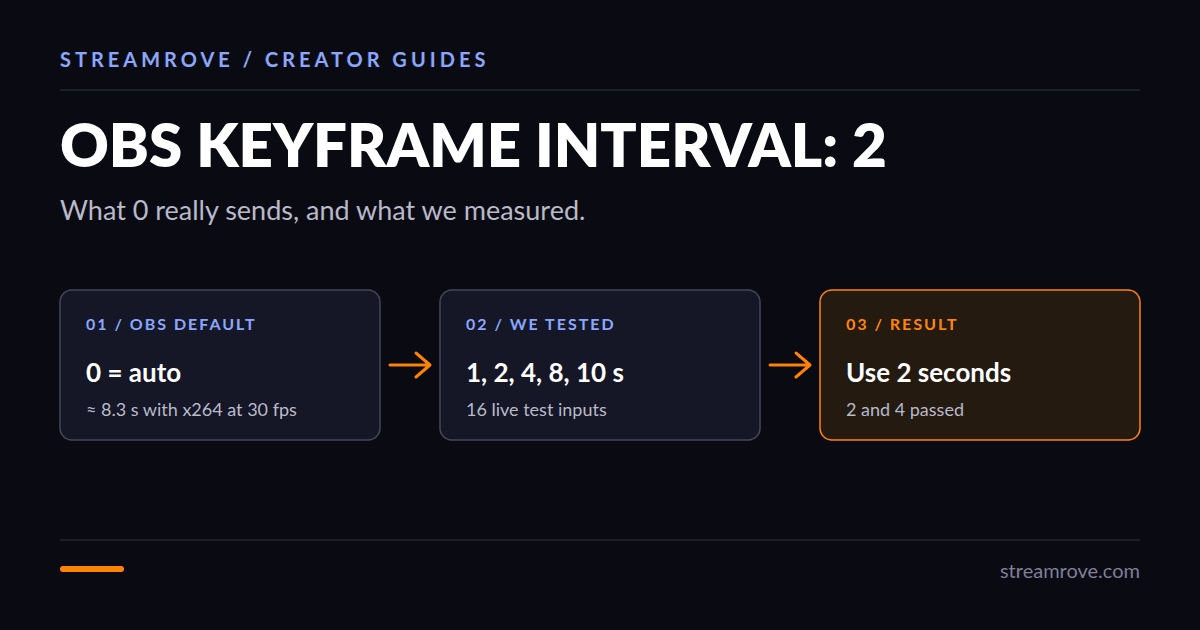
Set the keyframe interval in OBS to 2. It is in Settings → Output, with Output Mode set to Advanced, on the Streaming tab. YouTube, Twitch, Kick and Facebook all accept 2 seconds, and the default of 0 is the cause of a whole family of "my stream keeps freezing" problems.
What a keyframe is
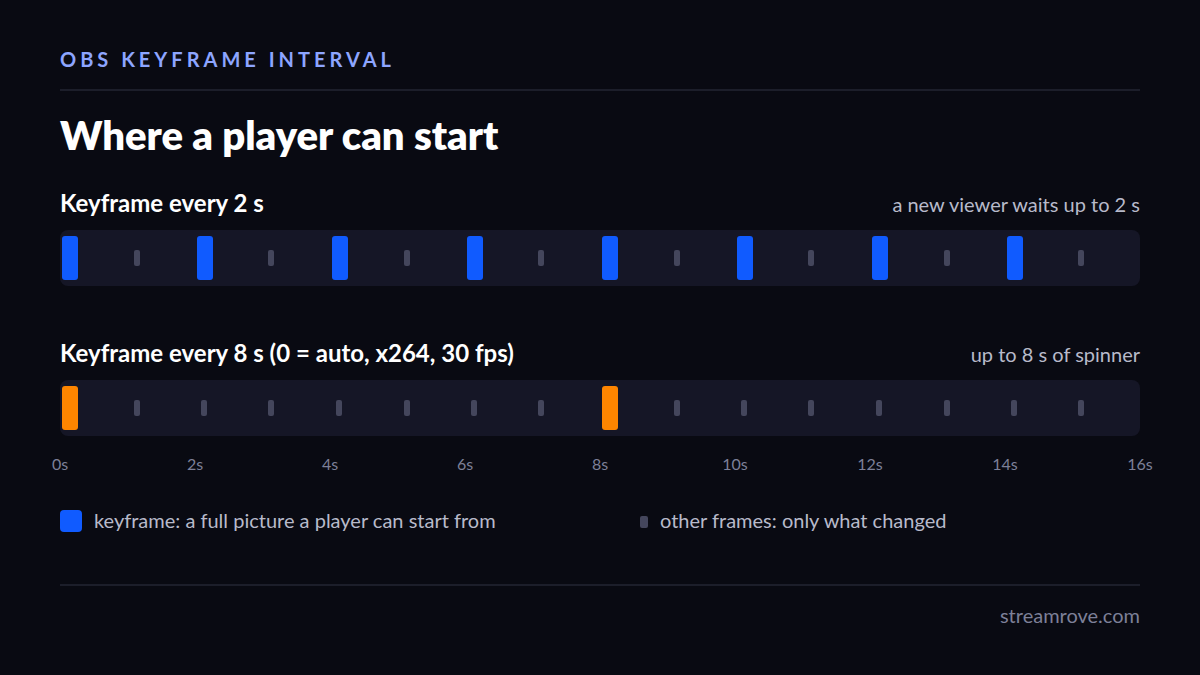
A video stream is mostly made of small frames that only describe what changed since the last one. Every so often the encoder sends a keyframe: a complete picture that needs nothing before it. A player can only start playing at a keyframe, and a platform can only cut the stream into segments at keyframes.
The keyframe interval is how far apart those complete pictures are. At 2 seconds, a new viewer waits at most 2 seconds for a picture. At 8 seconds, they can stare at a spinner for up to 8.
Why 0 is a bad default
In OBS, 0 means "let the encoder decide". The x264 encoder then uses its own default of 250 frames, which is 8.3 seconds at 30 fps and 4.2 seconds at 60 fps. Hardware encoders pick their own numbers. So the same OBS setting gives different results depending on the encoder and the frame rate, and many of them are outside what platforms ask for.
YouTube asks for 2 seconds and warns above 4. Twitch expects 2. A stream that ignores this still goes out, but the platform has to work around it, and sometimes it doesn't.
What we measured
Since September 2026 we had seen some customer broadcasts restart about two minutes in, with a few seconds of frozen picture on every platform at once. The ingest that received them gave the reason as a keyframe interval out of range.
To find the real rule, we created 16 test inputs and sent each one a 360p test picture with a fixed keyframe interval:
2 and 4 seconds ran without a restart. 1, 8 and 10 seconds all restarted about two minutes in.
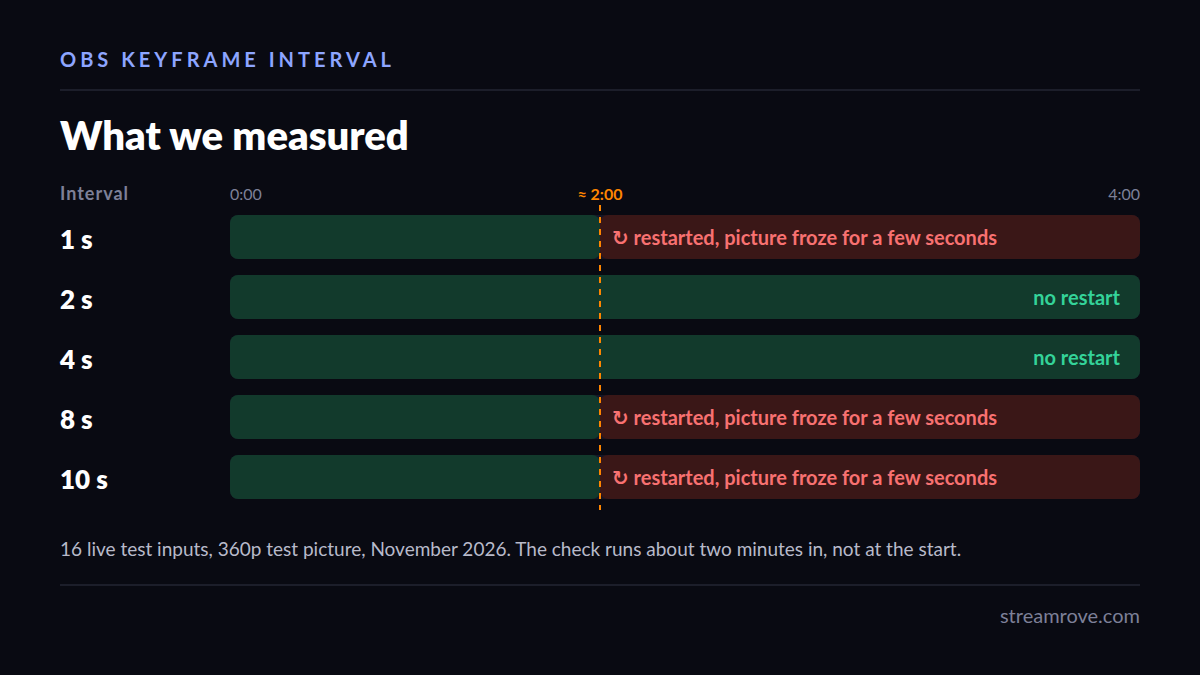
Two things surprised us. First, the check is not done at the start: the stream runs normally for about two minutes and then restarts. Anyone who tested for thirty seconds and saw a picture would think the settings were fine. Second, 1 second failed too. Shorter is not always safer.
We also found that reconnecting quickly makes it worse. When an encoder dropped and came back within about 20 seconds, the platform treated it as the same session and restarted it whatever the interval was. After about 40 seconds it counted as a new stream and nothing happened. If your connection drops, wait half a minute before you restart OBS.
These results are for the ingest we tested. Other platforms have their own checks, but 2 seconds is also what YouTube and Twitch ask for, so it is the one value that is safe on all of them.
How to set it in OBS
- Open Settings → Output.
- At the top, change Output Mode from Simple to Advanced. Simple mode hides the setting.
- On the Streaming tab, find Keyframe Interval and type 2. In OBS it is in seconds, so 2 means 2 seconds at any frame rate.
- Click Apply. The change takes effect the next time you start streaming.
If you use a StreamRove stream, the stream page has an OBS profile you can download and import, with Advanced mode and a 2-second keyframe interval already set.
Other encoders
In vMix, the setting is in the streaming quality options. In Streamlabs, it sits in the same Output settings as in OBS. For a hardware encoder or a camera with built-in streaming, look for "GOP", "I-frame interval" or "keyframe interval". If it is in frames rather than seconds, set it to twice your frame rate: 60 at 30 fps, 120 at 60 fps.
Common questions
Does a shorter interval improve quality? No. Keyframes are large, so more of them leaves less bitrate for everything else. At 1 second, motion looks worse at the same bitrate, and as we saw, some platforms reject it.
My stream looks fine with 0. Should I still change it? Yes. You may be using an encoder whose default happens to be close to 2, but a change of frame rate or encoder can quietly move it.
What bitrate should I use with it? That depends on resolution and your upload speed. The bitrate calculator gives a number for your connection, and our guides to Twitch and YouTube list what each platform accepts.