How to Live Stream on YouTube From Your Computer
November 11, 2026 · StreamRove Team
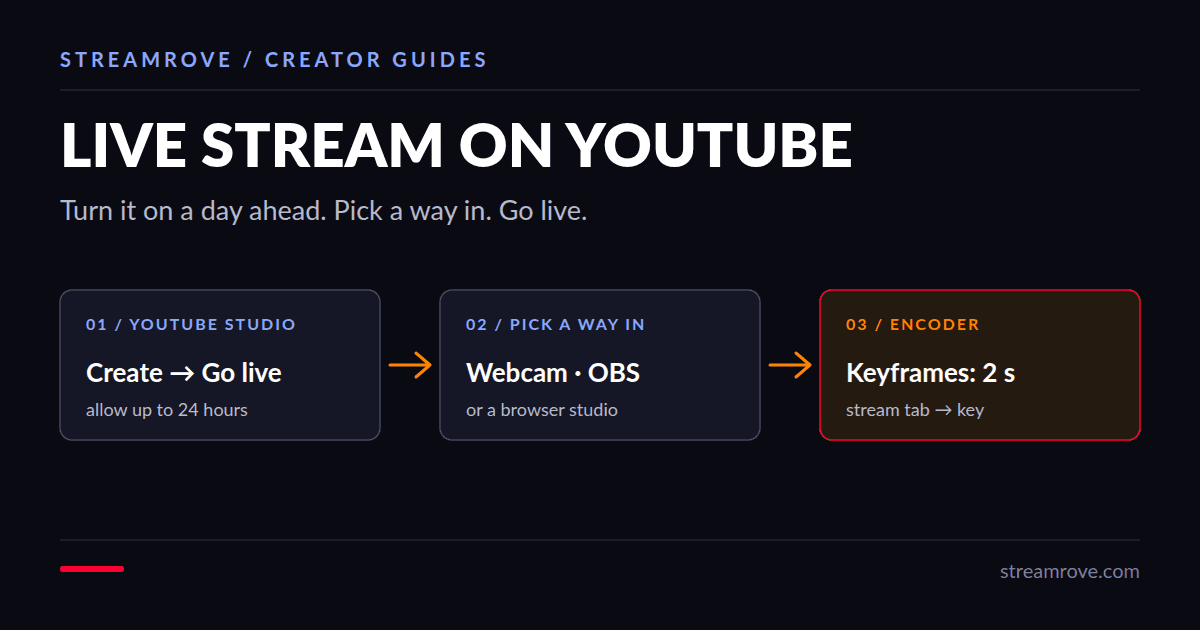
Before you plan your first YouTube stream, turn live streaming on. YouTube can take up to 24 hours to switch it on for a channel that has never streamed, and that wait is the most common reason a first stream starts late.
Turn on live streaming
- Open YouTube Studio and click Create → Go live.
- If YouTube asks you to verify the channel, do it with a phone number.
- Wait. When the Live Control Room opens instead of a waiting screen, the channel is ready.
Streaming from a computer has no subscriber minimum. Going live from the YouTube app on a phone does, so if you are a new channel, use a computer. YouTube's help page lists the current requirements.
Pick how you will go live
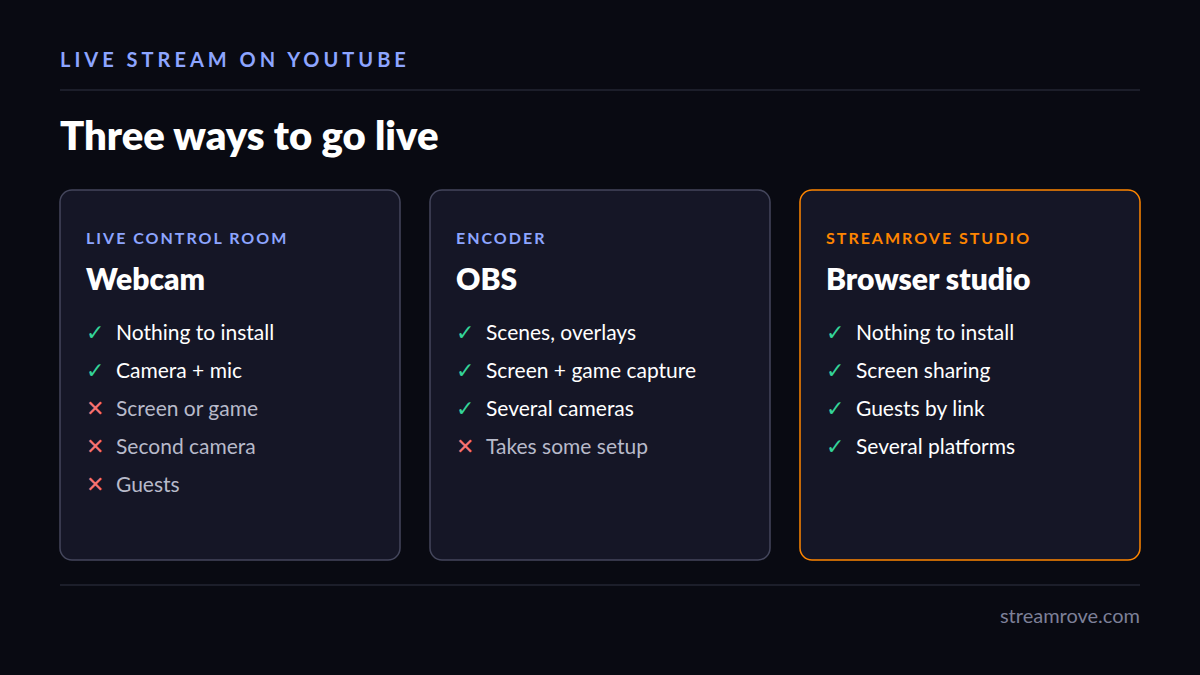
YouTube gives you three ways in, and they suit different shows.
The webcam option in the Live Control Room is the fastest. It uses your browser's camera and microphone, with no software to install. It can't show your screen, add a second camera or take a guest.
An encoder such as OBS gives you full control: scenes, overlays, screen and game capture, several cameras. It takes some setup, which the next section walks through.
A browser studio sits in between. With StreamRove's Studio you go live from a browser tab, share your screen, invite guests with a link, and send the stream to YouTube and other platforms at once. Nothing to install.
Set up OBS for YouTube
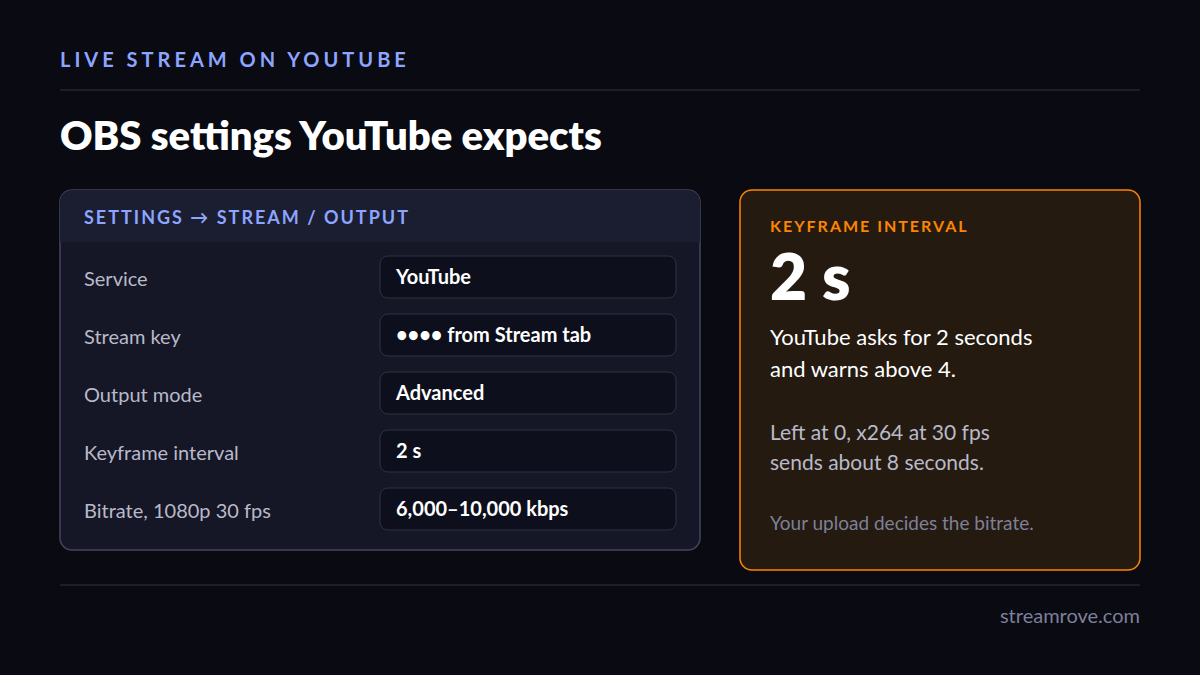
- In the Live Control Room, open the Stream tab. Copy the stream key. (Lost? Our YouTube stream key guide shows where it is.)
- In OBS, open Settings → Stream, choose YouTube as the service and paste the key. Or connect your account, if your OBS version offers it.
- Open Settings → Output, switch to Advanced, and set the keyframe interval to 2. YouTube asks for 2 seconds and warns above 4. Left at 0, OBS lets the encoder choose, which with x264 at 30 fps is about 8 seconds, and YouTube flags it. More on that in our keyframe interval guide.
- Set the bitrate for your resolution. For 1080p at 30 fps, around 6,000 to 10,000 kbps is common, but your upload speed decides. The bitrate calculator gives you a number for your connection.
- Click Start Streaming in OBS. The preview in the Live Control Room fills in after a few seconds. If you set "Auto-start" off, press Go live there too.
Schedule a stream instead
In the Live Control Room, choose Schedule stream, set a date and title, and YouTube creates a watch page you can share in advance. Viewers can set a reminder. When it's time, start your encoder and the scheduled stream picks it up.
Errors first streams hit
"Not receiving data": OBS is not connected. Check that Start Streaming is on and the key is from the same channel you are looking at.
"Video output low" or a keyframe warning: OBS is sending a long keyframe interval or a bitrate lower than YouTube expects for that resolution. Fix the keyframe interval first, since it causes most of these.
Buffering for viewers while OBS looks fine: the upload can't hold the bitrate. Lower it by a third and try again.
Stream to YouTube and Twitch at once
YouTube accepts one stream per broadcast, but nothing stops you sending the same show to more platforms. With StreamRove, OBS or the browser studio sends one feed, and we pass it on to YouTube, Twitch, Kick, Facebook, TikTok and others. The rules of streaming to YouTube and Twitch together are on our YouTube and Twitch page.
The free Sandbox plan covers a first test: two destinations, five output hours a month, broadcasts of up to an hour, with a watermark. No card needed.
Common questions
Can I stream to YouTube without OBS? Yes. Use the webcam option in the Live Control Room, or a browser studio such as StreamRove's Studio if you want screen sharing or guests.
Can I stream pre-recorded video to YouTube as live? YouTube calls this a Premiere when you upload it. To run a file as a real live stream, you need an encoder. StreamRove can play an uploaded file as a live broadcast.
Do I need a capture card? Only to bring in a console or a camera with HDMI out. For a webcam, a screen or a PC game, OBS captures it directly.