Streaming bitrate calculator for OBS and multistreaming
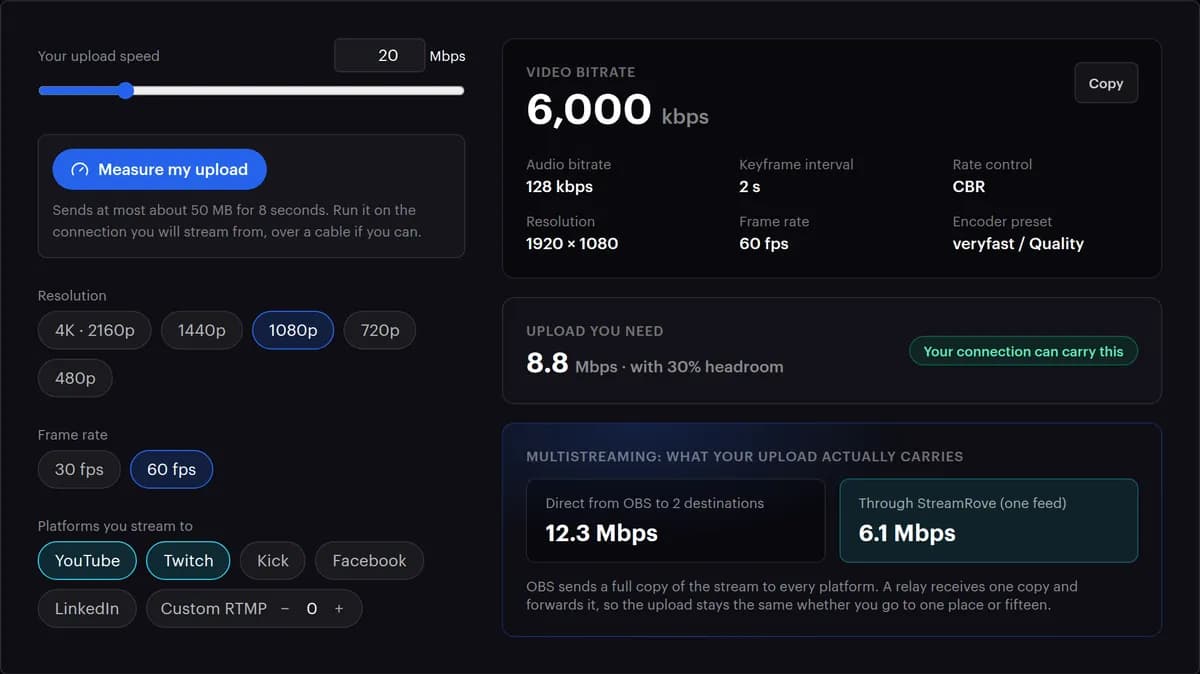
Measure your upload speed or type it in, choose resolution and frame rate, tick the platforms you stream to, and get the video bitrate, audio bitrate and keyframe interval to put in OBS, plus how much upload multistreaming will really need.
Uses the same per-platform numbers as the Output profile card on every StreamRove stream page: the advice here matches what the app shows you.
Runs in your browser — nothing is uploaded
Ready to use these settings in OBS? Create an encoder stream in StreamRove, then connect your destinations.
Set up my encoder streamHow the bitrate calculator works
- 01
Measure your upload speed
Press Measure my upload on the connection you will stream from. It sends random data for about 8 seconds, leaves out the first moments while the line warms up, and fills in the result rounded down to the nearest 0.5 Mbps. What it sends is thrown away on arrival.
- 02
Or type the number in
Any speed test will do: take its upload figure, not the download one, and type it in Mbps, from 1 to 200. Test over the cable or Wi-Fi you will really use.
- 03
Choose resolution and frame rate
The calculator opens on 1080p at 60 fps. Pick what your encoder will actually send; the table below shows the bitrate each choice starts from.
- 04
Tick every platform you stream to
YouTube and Twitch are ticked to start with. One stream goes to all of them, and the strictest limit wins: 6,000 kbps with Twitch or LinkedIn, 8,000 with Kick, 9,000 with Facebook, 12,000 with YouTube. Add any other service with Custom RTMP; the stream key finder shows where each platform keeps its address and key.
- 05
Read the notes under the result
A yellow note names the platform that set a limit. LinkedIn takes 30 fps, and every platform here stops at 1080p. The settings block keeps the frame rate and size you picked: change those buttons yourself until the frame rate and size notes go away.
- 06
Copy the settings into OBS
Press Copy. In OBS, set Output Mode to Advanced, enter rate control, bitrate, keyframe interval, preset and profile under Settings → Output → Streaming, the audio bitrate in the Audio tab next to it, and resolution and frame rate under Settings → Video.
Every number the calculator uses
Read from the calculator's own code: you can check any result by hand. The platform rows are StreamRove's profile for each service, the same numbers the Output profile card shows on a stream's page in the app.
| Item | Value | What it means for you |
|---|---|---|
| Starting bitrate at 30 fps | 480p 1,500 · 720p 3,000 · 1080p 4,500 · 1440p 6,000 · 4K 13,000 kbps | Where the video bitrate starts, before any platform limit |
| Starting bitrate at 60 fps | 480p 2,000 · 720p 4,500 · 1080p 6,000 · 1440p 9,000 · 4K 20,000 kbps | Twice the frames need a third to a half more bits to stay as sharp |
| YouTube | Up to 12,000 kbps · 60 fps · 1080p · 128 kbps audio | The most generous of the five: only 4K choices are cut, to 12,000 kbps |
| Twitch | Up to 6,000 kbps · 60 fps · 1080p · 160 kbps audio | Ticked with YouTube, Kick or Facebook, its 6,000 kbps is the ceiling for all of them |
| Kick | Up to 8,000 kbps · 60 fps · 1080p · 160 kbps audio | Leaves 1080p60 at 6,000 kbps; 1440p60 and 4K choices are cut to 8,000 |
| Up to 9,000 kbps · 60 fps · 1080p · 128 kbps audio | Leaves every 1080p choice as it is; 4K choices are cut to 9,000 kbps | |
| Up to 6,000 kbps · 30 fps · 1080p · 128 kbps audio | The only one of the five that asks for 30 fps | |
| Custom RTMP | No bitrate cap; 160 kbps audio when no platform above is ticked | Each one adds a destination to the multistream total |
| Audio bitrate | The lowest among the platforms you tick: 128 or 160 kbps | YouTube with Twitch gives 128 kbps |
| Same in every result | Keyframe every 2 s · CBR · preset veryfast for x264, Quality for NVENC · profile high | What every platform here expects |
| Measure my upload | Up to twelve 4 MB pieces of random data in 8 seconds, the first moments left out, rounded down to 0.5 Mbps | A slightly low estimate, which leaves you headroom |
| Upload you need | (video + audio) ÷ 0.7 | Keeps 30% of your line free for everything else |
| Verdict | Fits up to 70% of your upload · Tight up to 90% · Too low above that | Tight can work on a quiet line and drops frames on a busy one |
Worked example: Twitch alone at 1080p and 60 fps is 6,000 + 160 = 6,160 kbps, and 6,160 ÷ 0.7 = 8,800 kbps, the 8.8 Mbps the calculator shows. Every platform row stops at 1080p because these are StreamRove's own profiles, YouTube's included, built for one stream from your encoder that has to suit every destination you add.
Why a stream still stutters at the "right" bitrate
Upload is shared
Cloud backups, other people's video calls and game downloads use the same upload. Leave 30% spare; the calculator already does.
Wi-Fi jitter
A connection can look fast on average and still stall for a second at a time. A cable is not about speed; it is about consistency. On a line that keeps dipping, SRT re-sends what was lost.
Skipped frames due to encoding lag
That means the computer, not the line, cannot keep up. Move the x264 preset one step faster (veryfast to superfast), switch to a hardware encoder, or drop to 30 fps before you touch the bitrate.
A platform caps you anyway
Each platform has a ceiling: 6,000 kbps on Twitch, 9,000 on Facebook. Sending more buys nothing there and risks a stalled stream; stay at the figure the calculator gives.
Multistreaming from OBS multiplies upload
Sending the same stream to three platforms straight from OBS needs three times the upload. A cloud relay receives one copy and forwards it.
Variable bitrate
Platforms expect CBR. VBR spikes past what they accept and shows up as buffering for your viewers.
Other ways to pick a bitrate
Most people combine two of these. The calculator is for planning; OBS's own counters tell you on the day whether the plan holds.
| Way | Checks your upload | Handles several platforms | Shows what multistreaming costs | Good for |
|---|---|---|---|---|
| This calculator | Yes: Measure my upload, or the number you type | Yes: tick any mix and the strictest limit wins | Yes: OBS sending to each platform, next to one stream sent to StreamRove | Planning settings before you go live |
| A speed-test website | Yes, to a test server it picks | No: it gives a speed, not settings | No | Checking the line itself, download and upload |
| Each platform's help page | No | One platform per page | No | The official word on one platform's limits |
| Going live and watching OBS | Indirectly, through OBS's Dropped Frames (Network) count | Only the ones you are streaming to at that moment | Only by trying it | Proving a setup works under real load |
Why the bitrate number matters
Too low looks blurry, too high buffers
There is a narrow band between a picture that smears in motion and a stream that stalls. The right figure depends on your upload and the platform, not on a forum post.
Every platform has different limits
6,000 kbps on Twitch, 8,000 on Kick, 9,000 on Facebook, 6,000 at 30 fps on LinkedIn, and up to 12,000 on YouTube in StreamRove's profile. One encoder feed has to satisfy the strictest one you selected.
Multistreaming has its own arithmetic
Adding a destination in OBS adds a full copy of the stream to your upload. A relay keeps it at one copy, which is usually the difference between "works" and "drops frames".
Runs in your browser
The calculation happens on this page, and nothing you type is sent anywhere or stored. Measure my upload is the one exception: it sends random bytes to StreamRove's server to time your connection, and they are thrown away as soon as they arrive.
Stream once. Let the cloud carry the rest.
StreamRove takes the one stream you set up here and passes it on to every platform as it arrives. While you are live, a health score from 0 to 100 and Stream Doctor's plain-language advice point out a sagging bitrate, dropped frames or a keyframe interval that has drifted past 4 seconds.
Encoder tips that matter more than people think
- Set the keyframe interval to 2 seconds by hand. OBS's 0 means auto, which works out to 8 seconds, and StreamRove's health check warns above 4.
- For talking, teaching and slides, 1080p at 30 fps usually looks cleaner than 1080p at 60 fps on the same bitrate: each frame gets more of it.
- Use a hardware encoder (NVENC, AMF, Apple VideoToolbox) if you have one. It frees the processor for the game or the browser.
- Before the real show, stream to StreamRove for five minutes with every destination switched off. Watch OBS's dropped-frames counter and the health panel on your stream's page.
Frequently asked questions
What bitrate should I use for 1080p60 on Twitch?
6,000 kbps of video with 160 kbps of audio, the most Twitch accepts. Your upload should be about 8.8 Mbps to carry that with 30% to spare.
How much upload speed do I need to stream?
Your total bitrate, video plus audio, divided by 0.7. A 6,000 kbps stream with 160 kbps audio wants about 8.8 Mbps. The spare 30% is for the backups, calls and downloads that share the line.
What does the calculator recommend for YouTube?
Up to 12,000 kbps at 1080p and 60 fps, with 128 kbps audio: StreamRove's own YouTube profile. YouTube itself takes more, but StreamRove's live ingest is built for streams up to 1080p and under 12,000 kbps. Pick 1440p or 4K with YouTube ticked and a note says YouTube is limited to 1080p; the settings block still prints the size you chose, so switch to 1080p yourself. Sending 1440p or 4K from OBS straight to YouTube alone is a different setup; follow YouTube's own encoder guidance for it.
Does multistreaming need more upload speed?
From OBS directly, yes: every destination is another full copy of the stream. Through a cloud relay like StreamRove, no. You send one copy and the relay passes it to every platform. With YouTube and Twitch at 1080p60, the calculator shows 12.3 Mbps one way and 6.1 Mbps the other. More in how to multistream.
CBR or VBR for live streaming?
CBR. Live platforms are built around a steady rate; VBR peaks can go past their limits and cause buffering even when the average looks fine.
What does the calculator allow for Facebook?
Up to 9,000 kbps at 1080p, the top of Facebook's own range for 1080p60; at 1080p30 that range ends at 6,000. Every 1080p and 720p figure the calculator gives fits inside Facebook's ranges, so ticking Facebook doesn't lower them. Pick 1440p or 4K and a note asks for 1080p, because Facebook's table stops at 1920 × 1080.
How does Measure my upload work?
It sends up to twelve 4 MB pieces of random data for about 8 seconds and times them, ignoring the first moments while the connection gets going. The result is rounded down to the nearest 0.5 Mbps, which errs on the safe side. Nothing it sends is kept. Run it several times in a row and it asks you to wait a few minutes.
Does StreamRove change the bitrate I send?
Not on the standard route. Your stream is passed to every platform as it arrives, and the bitrate you set in OBS is the one each platform receives. The picture is re-encoded only when something is drawn into it: the small StreamRove mark on the free plan, or your own logo on the Guardian plan. Broadcasts from the browser Studio are encoded by StreamRove, at up to 6 Mbps, and a stream sent through the WHIP tab is re-encoded as well.
Should I stream at 60 fps or 30 fps?
60 fps for fast games and sport, 30 fps for talking, teaching and slides. At the same bitrate, 30 fps gives each frame more detail, which is why the calculator starts 1080p30 at 4,500 kbps and 1080p60 at 6,000. With LinkedIn on the list, send 30.
What does Tight mean?
Your stream would use between 70% and 90% of your upload. It can work on a quiet line, but a backup, a download or a video call on the same connection will make OBS drop frames. Lower the resolution or the frame rate until the result reads 'Your connection can carry this', or move to a cable.