How to Go Live on Instagram From a PC With OBS
November 17, 2026 · StreamRove Team
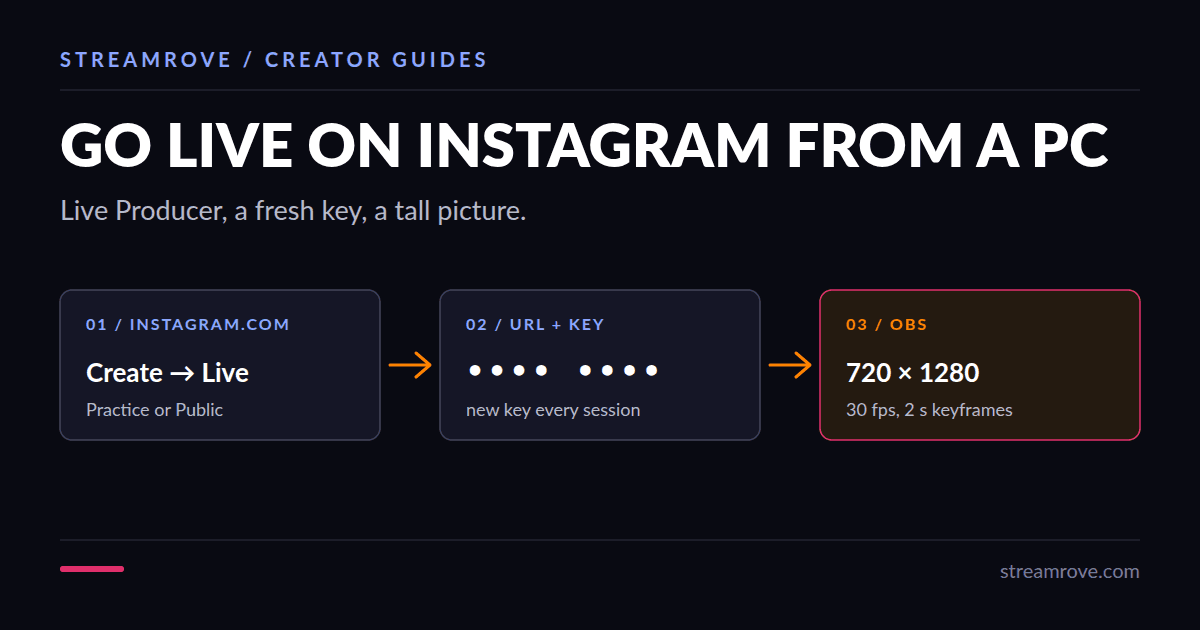
On a phone, going live on Instagram is two taps: swipe to the camera and choose Live. From a computer it goes through Live Producer, a page on instagram.com that hands you a stream URL and a stream key for OBS or any other streaming software. This guide covers the computer route, because that is the one with settings to get right.
Check that your account has the Live option
Open instagram.com on your computer, click the Create button (the plus in a square) and look for Live in the menu. If it is there, you can stream from OBS.
If it is missing, look at the account type first. In our experience Live shows up on professional accounts, which means Creator or Business. Switching is free and reversible: in the Instagram app go to Settings → Account type and tools → Switch to professional account. Instagram itself describes Live Producer as limited access, so a professional account without the option has to wait for it.
Stay away from sites that offer an "Instagram stream key" in exchange for your password. They drive an unofficial API with your login, and that puts the account at risk.
Get the stream URL and stream key
- Click Create → Live on instagram.com.
- Type a title and pick an audience. Practice shows the stream to nobody, which makes it the right choice for a first test. Public goes to your followers like any other live.
- Instagram shows a stream URL and a stream key. Copy both.
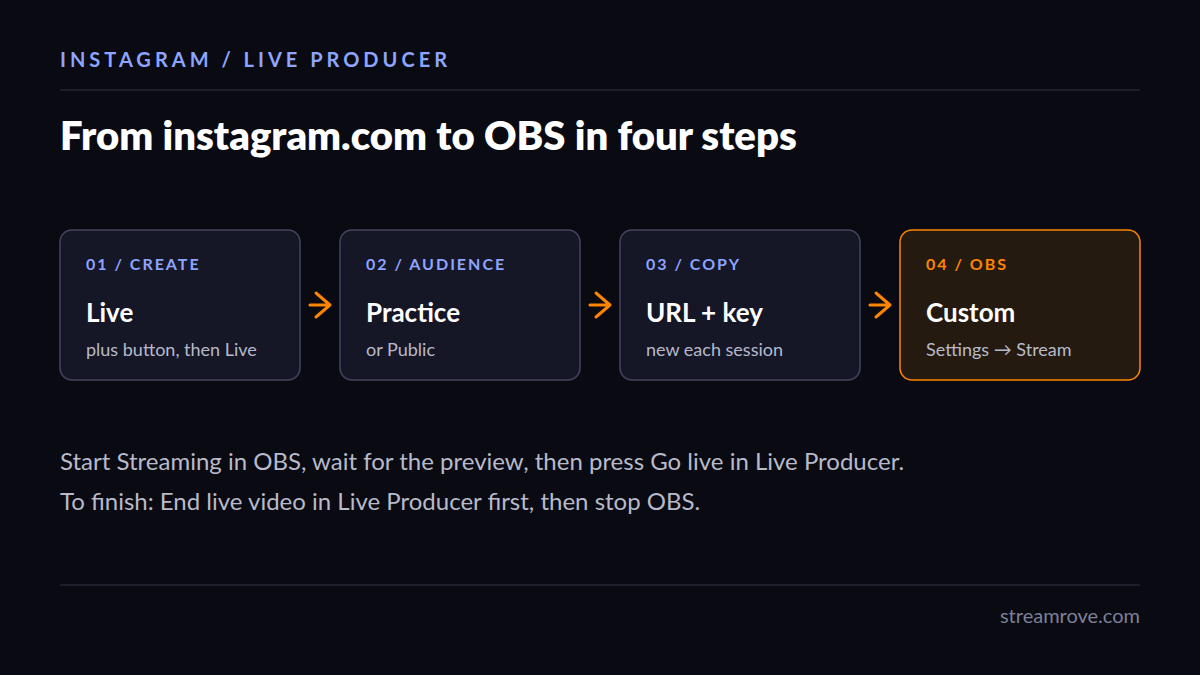
The key is good for one session. Instagram's own page says it "will refresh each time you use Live Producer", so last week's key will not connect today. Our Instagram stream key guide has the menu path with the key format.
Set up OBS for Instagram
Instagram is watched on phones. If you send a wide picture, viewers get a 9:16 crop out of the middle of it, so build the scene tall.
- In OBS open Settings → Video and set both the base and the output resolution to 720×1280. That is the size Instagram recommends, at 30 fps. It accepts 60 fps too.
- Rearrange the scene for the tall canvas. A camera above and a screen capture below works for most shows.
- In Settings → Output, switch Output Mode to Advanced and pick x264 or your graphics card's H.264 encoder. Use CBR at a rate between 2,250 and 6,000 kbps, which is the range Instagram gives; 3,500 kbps is plenty for 720p. Set the keyframe interval to 2 seconds. (Our keyframe interval guide explains why not 0.)
- For audio use 44.1 kHz stereo, at 128 to 256 kbps.
- In Settings → Stream, set Service to Custom and paste the stream URL and the stream key.
- Press Start Streaming in OBS. After a few seconds the picture appears in the Live Producer preview. Nothing is public yet.
- Click Go live in Live Producer.
If your upload is slow, the bitrate calculator works out a rate your connection can hold.
End it in the right order
Click End live video in Live Producer first, then stop the stream in OBS. Done the other way round, Instagram keeps the live running and shows viewers the last frame it received.
What Live Producer leaves out
Live Rooms, Shopping, Fundraisers and Q&A are not available when you stream from software, and neither are guests or moderators. You read and pin comments in the Live Producer window on instagram.com. Instagram also ends a live after roughly an hour, so plan a longer show as two parts.
Stream to Instagram, YouTube and Twitch at once
OBS sends to one service at a time. With StreamRove, OBS sends one feed and we pass it on to Instagram, YouTube, Twitch, Kick and others together. Add Instagram as a destination, paste the stream URL and that day's key, and point OBS at StreamRove.
Mind the picture shape. Instagram wants it tall, YouTube and Twitch want it wide, and one feed can only be one of the two. The browser studio has layouts that fill a 9:16 frame for the days when Instagram and TikTok are the main audience.
The free Sandbox plan is enough to try it: two destinations, five output hours a month, broadcasts of up to an hour, and a StreamRove watermark. No card needed.
Common questions
Can I go live on Instagram from a Mac? Yes. Live Producer runs in the browser and OBS runs on macOS, so the steps are the same.
Why won't OBS connect? Nearly always an old key. Start a new session in Live Producer and paste the fresh one. Then check that Service is set to Custom and that the URL was copied whole.
Can I rehearse without anyone seeing? Yes. Pick Practice as the audience in Live Producer; that broadcast reaches nobody.
Is the live saved afterwards? Only if Live Archive is switched on in your Instagram settings. The finished video can be shared or downloaded from there.